%%{init: {'theme': 'base', 'themeVariables': {'git0': '#aaaaaa', 'git1': '#89CFF0', 'git2': '#90EE90', 'gitBranchLabel0': '#111111', 'gitBranchLabel1': '#111111', 'gitBranchLabel2': '#111111'}}}%%
gitGraph
commit id: "Initial commit"
commit id: "Add practice files"
branch catherine-temperature
checkout catherine-temperature
commit id: "Add F-to-C conversion"
commit id: "Add C-to-F conversion"
checkout main
branch heathcliff-windchill
commit id: "Add wind chill formula"
commit id: "Add heat index"
checkout main
Git for Collaboration
Branches, Merging, and Pull Requests
Will Chapman
CU Boulder ATOC
Spring 2026
Reminders
Due this evening at 12pm:
- Lab 4
Office Hours:
Will: Tu 11:15-12:15p; Th 9-9:50a
Aerospace Cafe
Aiden: M / W 330-430p
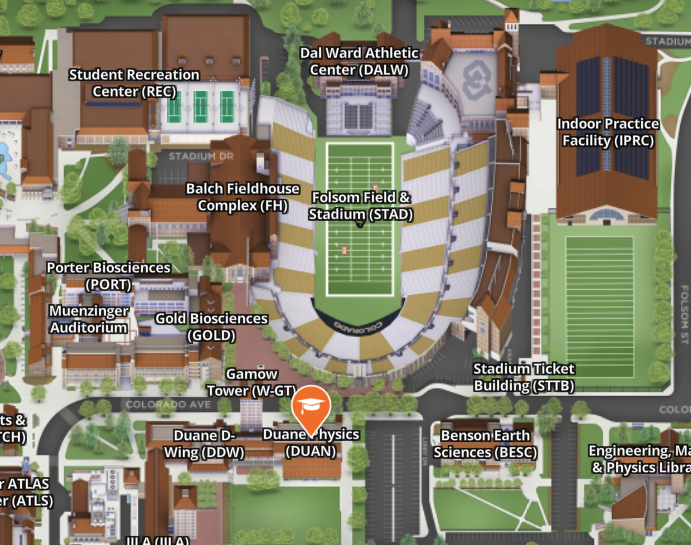
DUAN D319
ATOC 4815/5815 Playlist

Last Time: 5 Commands to Survive
You already know these:
| # | Command | What it does |
|---|---|---|
| 1 | git clone |
?? |
| 2 | git status |
?? |
| 3 | git add |
?? |
| 4 | git commit |
?? |
| 5 | git push / git pull |
?? / ?? |
Last Time: 5 Commands to Survive
You already know these:
| # | Command | What it does |
|---|---|---|
| 1 | git clone |
Download a project |
| 2 | git status |
What changed? (always safe) |
| 3 | git add |
Stage files to save |
| 4 | git commit |
Save a snapshot |
| 5 | git push / git pull |
Upload / Download |
Today we focus on using git for collaboration
The Collaboration Problem
The Problem
Git for solo work is simple:
You ─── edit ─── commit ─── pushOne person, one copy, no conflicts.
But science is collaborative:
- You and a labmate/coworker share analysis code
- Two people edit the same file
- Someone pushes while you’re still working
Today’s question: How do two people work on the same code without breaking everything?
Catherine & Heathcliff
Catherine and Heathcliff are ATOC students working on a weather analysis project together.
- They share a GitHub repository
- Catherine is writing temperature conversions
- Heathcliff is writing wind chill calculations
- They need to work at the same time without stepping on each other’s toes

The disaster scenario: Both edit collaborative_analysis.py on main, both push… 💥
What Actually Goes Wrong
Catherine:  clone → edit line 10 → commit → push ✅ (she pushed first)

Heathcliff: clone → edit line 10 → commit → push ❌ REJECTED!
            "Updates were rejected because the remote contains work
             that you do not have locally."
Heathcliff has to git pull, and now Git tries to smash their changes together. If they edited the same lines, Git doesn’t know whose version to keep.
Result: A merge conflict.
There’s a better way. Today you’ll learn it.
Why Not Just Use Dropbox?
| Feature | Git | Dropbox/OneDrive |
|---|---|---|
| Track who changed what | Yes, line-by-line | No |
| Meaningful change messages | Yes, commit messages | No |
| Work on multiple features simultaneously | Yes, branches | No |
| Merge conflicting changes | Yes, smart merge | Creates duplicates |
| Collaborate with strangers | Yes, pull requests | Hard |
| Review before accepting changes | Yes, code review | No |
| Undo specific changes | Yes, revert commits | Version history only |
Git is not just version control – it’s a project management system.
Dropbox backs up files. Git tracks what changed, who changed it, when, and why. Today’s tools – branches, merging, and pull requests – are what make that possible.
Today’s New Toolkit
| Tool | What it solves |
|---|---|
git log / git diff |
See what happened and what changed |
| Branches | Work in parallel without collisions |
| Merging | Combine parallel work back together |
| Merge conflicts | Handle the case where both people edited the same line |
| Pull requests | Propose and review changes before merging |
.gitignore |
Keep junk out of your repo |
Review & New Commands
Two New Read-Only Commands
git log – See your history
a3f1d2e Complete wind analysis
b7c9e4a Add my name
1f2a3b4 Initial commit- Each line = one commit. Most recent on top.
Pro tip: Run git diff before git add to review your changes. Catches mistakes early.
git diff Options
git diff is more powerful than it looks — you can compare almost anything:
Staged changes (after git add, before git commit):
Between two commits:
Between two branches:
The pattern: git diff [thing1] [thing2] [-- optional/file/path]
Omit thing1 and thing2 → compares working directory to last commit.
git log Options
When is this useful?
- “What did I do yesterday?”
- “What did my partner change?”
- “When did this bug get introduced?”
Practice Checkpoint: Log & Diff
In your atoc4815_git repo:
- Run
git log --oneline– see your past commits from last session - Open any file and make a small change (add a comment)
- Run
git diff– see your change highlighted - Undo the change (delete the comment)
These are your version tools. Use them whenever you need to understand what happened.
Using Your History: Rewinding
Those hashes in git log aren’t just for reading. You can use them to travel back in time.
Scenario 1: “What did that commit actually change?”
Scenario 2: “I broke a file — bring back the old version”
This is surgical — only restores one file, leaves everything else alone.
Undoing a Bad Commit: git revert
The safest way to undo a commit that’s already been pushed:
Why revert instead of deleting the commit?
The history is preserved. If you’ve already pushed and a partner has pulled, you can’t just erase history — revert is the safe, collaborative way to undo.
| Situation | Command |
|---|---|
| See what a commit changed | git show <hash> |
| Restore one file to an old version | git checkout <hash> -- filename |
| Undo a pushed commit safely | git revert <hash> |
Branches: Parallel Code Bases
Why Branches?
Without branches:
Catherine and Heathcliff both edit main. Every push risks a conflict. They have to take turns.
main: Catherine → Heathcliff → Catherine → ...
      (slow, fragile)
With branches:
Catherine and Heathcliff each get their own parallel copy. They work independently, then combine when ready.
main:           ─────────────────────────
Catherine:        ╲── work ── work ──╱
Heathcliff:           ╲── work ──╱
Branches = parallel universes for your code. Changes in one branch don’t affect any other branch until you merge.
What Is a Branch?
A branch is just a named pointer to a commit.
main:               A ── B ── C        ← main points here
                              │
catherine-temp: ╰── D ← catherine-temp points heremainis the default branch (the “real” version)- When Catherine creates
catherine-temp, it starts as a copy ofmain - Her new commits go on
catherine-temponly mainstays untouched until she merges
Think of it like: making a copy of a Google Doc to try out edits, then pasting the good parts back into the original.
Creating a Branch
Naming convention: Use descriptive names with your name or the feature:
catherine-temperature,heathcliff-windchillfix-unit-conversion,add-heat-index
Working on a Branch
Once you’re on a branch, everything works the same. Status-Add-Commit-Status.
Pushing a Branch to GitHub
The first time you push a new branch:
What does -u origin catherine-temperature mean?
origin= your GitHub fork (set up when you cloned)catherine-temperature= the branch name on GitHub-u= “remember this connection” (next time, justgit push)
After the first push, you can just use git push as usual.
Switching Between Branches
What This Looks Like
Here’s what Catherine and Heathcliff’s repo looks like with branches:
main is untouched. Catherine and Heathcliff work in peace. When they’re ready, they’ll merge back.
Practice Checkpoint: Create a Branch
In your atoc4815_git repo:
- Make sure you’re on
main:git branch(look for the*) - Create and switch to a new branch:
git checkout -b my-feature - Verify:
git branch– you should see* my-feature - Open
collaborative_analysis.pyand add a comment at the top:# Edited by [your name] - Save, then:
git add collaborative_analysis.py - Commit:
git commit -m "Add my name to collaborative analysis" - Switch back to main:
git checkout main - Open the file again – your comment is gone! (It’s safe on your branch.)
- Switch back:
git checkout my-feature– the comment is back!
Merging: Bringing It Together
What Is Merging?
Merging = combining the work from one branch into another.
Before merge:
main:           A ── B
                      ╲
my-feature:            C ── D

After merge:
main:           A ── B ──────── E  (merge commit)
                      ╲        ╱
my-feature:            C ── D
The merge commit E has the combined work from both branches.
How to Merge
Step 1: Switch to the branch you want to merge INTO (usually main):
Step 2: Merge the other branch:
That’s it. Git combines the changes automatically (when possible).
Updating b7c9e4a..d3f1a2e
Fast-forward
 collaborative_analysis.py | 5 +++++
1 file changed, 5 insertions(+)Fast-Forward vs Merge Commit
Fast-forward (simple case):
No one else committed to main while you were on your branch. Git just moves the pointer forward.
Before:
main:    A ── B
my-feat:      ╰── C ── D

After:
main:    A ── B ── C ── D
Merge commit (parallel work):
Both branches have new commits. Git creates a new commit that combines them.
Before:
main:    A ── B ── X
my-feat:      ╰── C ── D

After:
main:    A ── B ── X ── M
              ╰── C ── D ╱
You don’t need to worry about which one happens. Git picks the right strategy automatically.
How a Merge Plays Out
%%{init: {'theme': 'base', 'themeVariables': {'git0': '#aaaaaa', 'git1': '#89CFF0', 'gitBranchLabel0': '#111111', 'gitBranchLabel1': '#111111'}}}%%
gitGraph
    commit id: "Initial commit"
    commit id: "Add practice files"
    branch catherine-temperature
    checkout catherine-temperature
    commit id: "Add F-to-C"
    commit id: "Add C-to-F"
    checkout main
    merge catherine-temperature id: "Merge Catherine's work"
    commit id: "main continues..."
Catherine’s work is now part of main. This is nice because it is traceable.
Practice Checkpoint: Merge Your Branch
Continue from the previous checkpoint:
- Make sure you’re on
my-feature:git branch - If you don’t have a commit there yet, make one now
- Switch to main:
git checkout main - Merge:
git merge my-feature - Check the file – your changes from the branch are now on
main! - Run
git log --oneline– see the merge - Clean up:
git branch -d my-feature
Merge Conflicts:
When Do Conflicts Happen?
Merge conflicts happen when two branches change the same line in the same file.
Catherine (on catherine-temp):
    def fahrenheit_to_celsius(temp_f):
        return (temp_f - 32) * 5/9       ← changed line 10

Heathcliff (on heathcliff-windchill):
    def fahrenheit_to_celsius(temp_f):
        return (temp_f - 32) * (5/9)     ← also changed line 10!
Git doesn’t know which version to keep. So it asks you to decide.
This is not an error. It’s Git saying: “I need an owners decision here.”
What a Conflict Looks Like
When you try to merge and there’s a conflict, Git puts markers in the file:
Reading the markers:
| Marker | Meaning |
|---|---|
<<<<<<< HEAD |
Start of YOUR version (the branch you’re on) |
======= |
Divider between the two versions |
>>>>>>> heathcliff-windchill |
End of THEIR version (the branch you’re merging in) |
How to Resolve: Step by Step
Step 1: Open the file and find the <<<<<<< markers
Step 2: Decide which version to keep (or combine them)
Step 3: Delete the markers and leave only the code you want:
Conflict Resolution Tips
Do:
- Read both versions carefully
- Understand what each person intended
- Test the code after resolving
- Ask your partner if you’re unsure
- Use
git statusto see which files have conflicts
Don’t:
- Panic
- Delete the whole file
- Just pick one version without reading
- Leave the
<<<<<<<markers in the file - Forget to
git addafter resolving
VS Code tip: VS Code highlights conflicts and gives you buttons: “Accept Current”, “Accept Incoming”, “Accept Both”. Super handy!
Avoiding Conflicts
The best merge conflict is one that never happens:
- Use branches – work on separate features
- Divide work clearly – “I’ll do Section A, you do Section B”
- Pull often –
git pullbefore starting work each day - Communicate – tell your partner what you’re working on
- Keep commits small – easier to merge small changes
Catherine and Heathcliff’s strategy: Catherine works on temperature functions (Section A), Heathcliff works on wind chill functions (Section B).
Practice Checkpoint: Create & Resolve a Conflict
This is intentional – you’re going to cause a conflict on purpose:
- Make sure you’re on
mainand everything is committed - Create a branch:
git checkout -b conflict-test - In
collaborative_analysis.py, change the first docstring line to:"""Collaborative Weather Analysis -- edited on conflict-test""" git add .thengit commit -m "Edit docstring on branch"- Switch to main:
git checkout main - Change that same line to:
"""Collaborative Weather Analysis -- edited on main""" git add .thengit commit -m "Edit docstring on main"- Now merge:
git merge conflict-test - CONFLICT! Open the file, resolve the markers, pick whichever version you prefer
git add .thengit commit -m "Resolve conflict"
Pull Requests: Proposing Changes
What Is a Pull Request?
A pull request (PR) is a way to say:
“Hey, I made changes on my branch. Can you review them and merge them into
main?”
Why not just merge directly?
- PRs let someone review your code before it goes into
main - They create a record of what changed and why
- They’re how open-source projects and research labs manage contributions
- In this class: a PR is how you “turn in” collaborative work
Think of it like: submitting a draft for peer review before it gets published.
Creating a Pull Request: Step by Step
Step 1: Push your branch to GitHub
Step 2: Go to your repo on GitHub. You’ll see a yellow banner:
catherine-temperature had recent pushes — [Compare & pull request]Click Compare & pull request. This opens GitHub’s Compare view – it shows you exactly what’s different between your branch and main before you create the PR.
Step 3: Fill in the PR form:
- Title: Short description (“Add temperature conversion functions”)
- Description: What you changed and why
- Reviewers: Add your partner (if working together)
Click Create pull request.
Writing a Good PR Description
Good PR description:
Rule of thumb: Future-you should be able to read this PR in 6 months and understand what happened.
Reviewing a Pull Request
When your partner creates a PR, you can review it on GitHub:
- Go to the Pull requests tab in the repo
- Click on the PR
- Click the Files changed tab to see what they modified – this is GitHub Compare in action
- Green lines = additions, Red lines = deletions
- You can leave comments on specific lines (click the
+icon) - When you’re satisfied, click Review changes → Approve
Tip: You can compare any two branches anytime at github.com/you/repo/compare. You don’t need a PR – it’s a great way to preview what a merge would look like.
Good review comments:
- “This looks correct!”
- “Should this handle negative temperatures?”
- “Nice work on the docstrings.”
Not helpful: “Looks good” (with no actual review)
Merging a Pull Request
Once the PR is approved:
- Click the green Merge pull request button on GitHub
- Click Confirm merge
- Optionally, click Delete branch to clean up
Back on your local machine, pull the merged changes:
Now your local main has the merged code!
The full cycle:
Branch → Commit → Push → PR → Review → Merge → Pull
Practice Checkpoint: Create a Pull Request
Let’s do a real PR:
- Create a new branch:
git checkout -b add-my-section - Edit
collaborative_analysis.py– implement one function (e.g.,fahrenheit_to_celsius) - Commit:
git add .thengit commit -m "Implement fahrenheit_to_celsius" - Push:
git push -u origin add-my-section - Go to your fork on GitHub
- Click Compare & pull request
- Write a title and description, then click Create pull request
- Look at the Files changed tab – that’s what a reviewer sees!
Don’t merge it yet! We’ll use this PR in the lab exercise.
.gitignore: Keeping Repos Clean
What Should NOT Be in Git?
Some files don’t belong in a repository:
Don’t track:
- Large data files (
.nc,.csv,.hdf5) - Compiled Python files (
__pycache__/) - OS junk (
.DS_Store,Thumbs.db) - Editor configs (
.vscode/,.idea/) - Secrets and API keys
- Virtual environments (
venv/,.conda/)
Do track:
- Source code (
.py,.R,.f90) - Documentation (
README.md) - Configuration (
.yml,.toml) - Small sample data for testing
- Notebooks (
.ipynb,.qmd) - Scripts and workflows
Rule of thumb: Track things you wrote. Don’t track things that can be generated or downloaded.
The .gitignore File
Create a file called .gitignore in your repo root:
Git will ignore any files matching these patterns. They won’t show up in git status and won’t be committed.
Common .gitignore for ATOC Work
Here’s a good starter .gitignore for atmospheric science Python projects:
Tip: GitHub has a collection of templates at github.com/github/gitignore. The Python template is a great starting point.
The Complete Collaboration Workflow
Full Workflow Summary
Pull main → Branch → Edit → Add & Commit → Push → PR → Review → Merge → Pull main
                       ↑                     |
                       └── more changes? ────┘
git checkout main && git pull # 1. Start fresh
git checkout -b my-feature # 2. Create branch
# ... edit files ... # 3. Make changes
git add . && git commit -m "msg" # 4. Commit
git push -u origin my-feature # 5. Push
# Create PR on GitHub # 6-8. PR workflow
git checkout main && git pull # 9. Get merged codeBranch Naming Conventions
Good branch names help your team understand what’s happening:
| Pattern | Example | When to use |
|---|---|---|
name-feature |
catherine-temperature |
Personal feature work |
feature/description |
feature/add-wind-chill |
Adding new functionality |
fix/description |
fix/unit-conversion-bug |
Fixing a bug |
hw/number |
hw/homework-3 |
Homework assignments |
Avoid:
mainormaster(these are reserved)- Spaces in branch names (use hyphens:
my-feature) - Super long names (
catherine-fixing-the-thing-from-tuesday-that-broke)
Rules of Git Collaboration
- Never push directly to
main– always use a branch and PR - Pull before you start working –
git checkout main && git pull - One feature per branch – keep branches focused
- Commit often – small commits are easier to merge and review
- Write descriptive commit messages – future-you will thank you
- Communicate with your partner – “I’m working on Section A”
- Review PRs carefully – don’t just click approve
- Delete merged branches – keep things tidy
Lab Exercise
Collaborative Analysis Lab
Pair up with a partner. You will:
- Work on
collaborative_analysis.pytogether - Each complete your assigned section on a branch
- Submit pull requests
- Review each other’s code
- Merge the final result
What to turn in: The URL of your merged pull request
Time: ~30 minutes. Work through the steps on the next slides.
Lab Step 0: Pick a Shared Repo
Each of you has your own fork. For this lab, both partners work in one fork together.
- Decide who is Partner A (repo owner) and who is Partner B (collaborator)
- Partner A: Go to your fork on GitHub → Settings → Collaborators → Add people → add Partner B’s GitHub username
- Partner B: Accept the invite (check your email or GitHub notifications)
- Partner B: Clone Partner A’s fork:
From here on, all branches and PRs live in Partner A’s fork. Partner B pushes to Partner A’s repo, not their own.
Lab Step 1: Setup
Both partners (working in Partner A’s fork):
- Make sure you’re in the right repo — check the URL:
git remote -vshould showPARTNER_A_USERNAME/atoc4815_git - Get the latest version:
- Verify
collaborative_analysis.pyexists:ls
Partner A will implement temperature functions (Section A).
Partner B will implement wind chill and heat index (Section B).
Lab Step 2: Create Your Branch
Partner A:
Partner B:
Verify: git branch should show your new branch with a *.
Both partners work at the same time from here on. That’s the whole point of branches!
Lab Step 3: Implement Your Section
Partner A – Section A:
- Implement
fahrenheit_to_celsius() - Implement
celsius_to_fahrenheit() - Implement
daily_temp_range()
Hints:
C = (F - 32) * 5/9F = C * 9/5 + 32- Range dict:
{"range_f": ..., "range_c": ...}
Partner B – Section B:
- Implement
wind_chill() - Implement
heat_index()
Hints:
- Check the docstrings for formulas
- Return
Nonewhen inputs are out of range - Wind chill:
temp_f <= 50andwind_mph >= 3 - Heat index:
temp_f >= 80
Test your section: python collaborative_analysis.py (the other section will print None – that’s OK!)
Lab Step 4: Commit & Push
Both partners (on your own branch):
Example (Partner A):
Verify: Go to your fork on GitHub. You should see your branch listed.
Lab Step 5: Create a Pull Request
Both partners:
- Go to Partner A’s fork on GitHub (
github.com/PARTNER_A_USERNAME/atoc4815_git) - You should see a banner for your recently pushed branch
- Click Compare & pull request
- Make sure the base repository is Partner A’s fork and the base branch is
main - Write a title: “Add temperature functions” (or “Add wind chill functions”)
- Write a description explaining what you implemented
- Click Create pull request
Share your PR link with your partner!
Lab Step 6: Review & Merge
Review your partner’s PR:
- Open your partner’s PR link (they shared it with you)
- Click the Files changed tab
- Look at the code – does it make sense?
- Leave at least one comment (e.g., “Looks good!” or a question)
Merge the PRs (one at a time):
- Partner A merges their PR first (click Merge pull request)
- Partner B: pull the updated main, then merge theirs:
- Partner B merges their PR on GitHub
Lab: What to Turn In
Both partners submit the same URL — the merged PR from Partner A’s fork.
It will look like:
https://github.com/PARTNER_A_USERNAME/atoc4815_git/pull/1How to find it: Go to Partner A’s repo on GitHub → Pull requests → click your merged PR → copy the URL from the browser.
Submit on Canvas under this week’s lab assignment. Both partners submit individually, but the URL will be identical.
Grading criteria:
- Branch was created with a descriptive name ✓
- Functions are correctly implemented ✓
- Pull request has a title and description ✓
- At least one review comment left ✓
- PR was merged into
main✓
Wrapping Up
What You Learned Today
| Tool | What it does |
|---|---|
git log |
View commit history |
git diff |
See what changed before committing |
git show <hash> |
See what a specific commit changed |
git checkout <hash> -- file |
Restore one file to a past version |
git revert <hash> |
Undo a pushed commit safely |
git branch / git checkout -b |
Create and switch branches |
git merge |
Combine branches |
| Merge conflicts | Resolve when two people edit the same line |
| Pull requests | Propose, review, and merge changes on GitHub |
.gitignore |
Tell Git to skip certain files |
Combined with your original 5 commands, you now have the full collaboration toolkit.
Cheat Sheet
Branching:
The workflow: Pull → Branch → Edit → Commit → Push → PR → Review → Merge → Pull
Resources
- Oh Shit, Git! – Fixes for common mistakes
- GitHub Pull Request Docs – Official PR guide
- Git Cheat Sheet (PDF)
- Learn Git Branching – Interactive visual tutorial
- Git for Science Beginners (last week) – Review the basics
- Git for Scientific Software Development – The full reference
Questions?
Will Chapman | wchapman@colorado.edu | willychap.github.io

ATOC 4815/5815 Git Collaboration