ATOC 4815/5815
Packaging Your Python Code — Week 10
CU Boulder ATOC
Spring 2026
Packaging Your Python Code
Today’s Objectives
- Understand why you should package your code (not just share loose files)
- Write a
pyproject.tomlthat makes your project pip-installable - Create a command-line entry point for your Lorenz ensemble runner
- Build and publish your package to TestPyPI
- Understand how conda-forge distributes scientific packages
Reminders
Lab 7 Due Tonight
Final Proposal Due Tonight
- Submit via Canvas by 11:59pm
Office Hours:
Will: Tu 11:15-12:15p Th 9-10a Aerospace Cafe
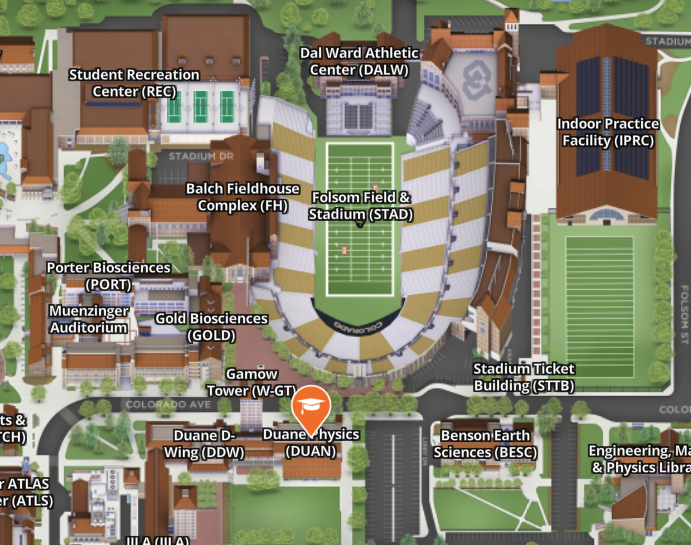
Aiden: M / W 330-430p DUAN D319
Why Package Your Code?
The Copy-Paste Problem
Your classmate wants to use your Lorenz63 class. What do you do?
Option A: Email them lorenz63.py
- What about
integrators.py?plotting.py? The dependencies? - Which version did you send? Was it the fixed one?
Option B: “Just clone my repo and copy the files”
- Now there are two copies. You fix a bug — they still have the old one.
Option C: “Add my repo to your sys.path”
- Fragile. Breaks when you move anything. Others can’t reproduce it.
What pip install Actually Does
pip (“Pip Installs Packages”) is Python’s package installer — the tool that downloads and installs packages from the internet into your environment. You’ve been using it all semester (pip install xarray, pip install cartopy). Today you’ll learn how to make your own code installable the same way.
When you run pip install numpy, here’s what happens:
1. Downloads the package from PyPI (Python Package Index)
2. Copies it into your environment's site-packages/
3. Installs any dependencies it needs (e.g., numpy needs BLAS)
4. Registers any command-line scripts
5. when done, you can `import numpy` from anywhere
Your package can do the exact same thing. The only question is: what files does pip need to know how to install it?
Answer: a single file called pyproject.toml at the root of your repo.
You Already Use Packages Every Day
Every import you write is loading an installed package:
These all started as someone’s project folder. The authors added packaging metadata, uploaded to PyPI, and now anyone can install them.
Your lorenz_project is 90% of the way there. Our last lab will add the final 10%.
The Goal
Right now, sharing your Lorenz63 code with a classmate means sending files, hoping their paths match, and debugging their environment. After today:
Package Structure
What You Already Have
From Week 5.5, your project looks like this:
lorenz_lab/
└── lorenz_project/
    ├── __init__.py
    ├── integrators.py
    ├── lorenz63.py
    ├── plotting.py
    └── run_lorenz_ensemble.py
This is already a valid Python package — you can import lorenz_project.lorenz63 when you’re inside lorenz_lab/.
But it’s not installable. pip doesn’t know it exists.
What a pip-Installable Package Looks Like
Add three files at the repo root (above lorenz_project/):
lorenz-project/                  ← repo root (note: hyphen in repo name is fine)
├── pyproject.toml               ← NEW — tells pip how to install
├── README.md                    ← NEW — project description
├── LICENSE                      ← NEW — open source license (MIT)
└── lorenz_project/              ← your existing package (underscore!)
    ├── __init__.py
    ├── integrators.py
    ├── lorenz63.py
    ├── plotting.py
    └── run_lorenz_ensemble.py
Convention: repo name uses hyphens (lorenz-project), package folder uses underscores (lorenz_project). Python imports can’t have hyphens.
Common Error: Flat vs Nested Layout
Common Error
pyproject.toml must be above the package folder, not inside it.
lorenz_project/          ← WRONG
├── pyproject.toml
├── __init__.py
├── lorenz63.py
└── ...
pip can’t find the package — it looks for a subfolder to install.
lorenz-project/          ← CORRECT
├── pyproject.toml
└── lorenz_project/
    ├── __init__.py
    ├── lorenz63.py
    └── ...
pyproject.toml is at the root, package is one level down.
If you currently have everything in one folder, create a parent directory and move pyproject.toml, README.md, and LICENSE there.
pyproject.toml
setup.py Is Dead, Long Live pyproject.toml
A brief history of Python packaging:
| Era | File | Status |
|---|---|---|
| 2000–2020 | setup.py |
Legacy — still works but don’t use for new projects |
| 2016–2020 | setup.cfg |
Transitional — declarative but limited |
| 2021–now | pyproject.toml |
The standard — PEP 621, all tools support it |
Why the change?
setup.pyis executable Python → security risk, hard to parse staticallypyproject.tomlis a simple config file (like JSON but readable)- One file replaces
setup.py+setup.cfg+requirements.txt+MANIFEST.in
TOML = Tom’s Obvious, Minimal Language. It’s just key-value pairs and tables — you’ll recognize the syntax immediately.
Your First pyproject.toml
Here’s a complete, working pyproject.toml for your Lorenz project:
[build-system]
requires = ["setuptools >= 61.0"]
build-backend = "setuptools.build_meta"

[project]
name = "lorenz-project"
version = "0.1.0"
description = "Lorenz63 model integration and ensemble analysis"
readme = "README.md"
license = {text = "MIT"}
requires-python = ">= 3.9"
authors = [
    {name = "Your Name", email = "you@colorado.edu"},
]
dependencies = [
    "numpy >= 1.22",
    "matplotlib >= 3.5",
]

[project.optional-dependencies]
dev = ["build", "twine"]

[project.scripts]
run-lorenz = "lorenz_project.run_lorenz_ensemble:main"
That’s the whole file. Let’s break it down.
Breaking It Down
The file has three sections. [project] is the only one you edit regularly — the others are boilerplate you copy once and forget.
| Section | Key | What it does | First-timer note |
|---|---|---|---|
[build-system] |
requires |
Which tool pip uses to package your code | Always setuptools — just copy this block |
build-backend |
The internal entry point for that tool | Boilerplate — don’t change it | |
[project] |
name |
Your package’s name on PyPI | Use hyphens, must be unique across all of PyPI |
version |
Version number | Start at "0.1.0", bump when you make changes |
|
description |
One-line summary | Shows up on your PyPI page | |
readme |
Path to your README | PyPI renders this as your project homepage | |
license |
Which open-source license | {text = "MIT"} is a safe default |
|
requires-python |
Oldest Python version you support | ">= 3.9" is a reasonable floor |
|
authors |
Your name and email | Shows on PyPI | |
dependencies |
Other packages your code imports | pip installs these automatically for your users | |
[project.optional-dependencies] |
dev |
Packages only you need (build tools, test runners) | Users don’t get these unless they ask for [dev] |
[project.scripts] |
run-lorenz |
Maps a terminal command to a Python function | After install, typing run-lorenz calls main() |
Semantic Versioning in 60 Seconds
Version numbers follow MAJOR.MINOR.PATCH:
v 1 . 4 . 2
  │   │   └── PATCH — bug fixes, no new features
  │   └────── MINOR — new features, backwards compatible
└────────── MAJOR — breaking changes| Version bump | When? | Example |
|---|---|---|
0.1.0 → 0.1.1 |
Fixed a bug in integrate() |
Patch |
0.1.1 → 0.2.0 |
Added run_ensemble() method |
Minor |
0.2.0 → 1.0.0 |
Changed Lorenz63 constructor arguments |
Major |
For this course: start at 0.1.0. You’re pre-1.0, so breaking changes are expected.
Dependencies and Version Pinning
Three styles of specifying dependencies:
Rule of thumb: use >= minimum for libraries (your Lorenz project), == exact only for deployed applications where reproducibility is critical.
Common Error
Exact pins (==) in a library cause dependency conflicts when users have other packages that need different versions.
Optional Dependencies
Some dependencies are only needed for development or special features:
Install them with bracket syntax:
This keeps your package lightweight by default — users only install what they need.
Check Your Understanding
Spot the Errors
This pyproject.toml has 3 errors. Can you find them?
Errors:
name = "lorenz_project"— package names on PyPI use hyphens, not underscores →"lorenz-project"version = "1"— not valid semver. Should be"1.0.0"(or"0.1.0"for a new project)numpy == 1.26.4— exact pin in a library causes dependency conflicts → use"numpy >= 1.22"
Entry Points: CLI Commands
From python -m to a Real Command
Right now you run your ensemble script like this:
Refactoring for Entry Points
Entry points call a function, so we need to wrap your script’s code in main():
Before (Week 5.5):
# run_lorenz_ensemble.py
from lorenz_project.lorenz63 import Lorenz63
from lorenz_project.plotting import (
    plot_ensemble_panels,
)
import numpy as np

model = Lorenz63()
ics = model.perturbed_ic(n=30)
ensemble = model.run_ensemble(ics, 0.01, 5000)
fig = plot_ensemble_panels(ensemble, 0.01)
fig.savefig("lorenz_ensemble.png")
print("Done!")
After (today):
# run_lorenz_ensemble.py
from lorenz_project.lorenz63 import Lorenz63
from lorenz_project.plotting import (
    plot_ensemble_panels,
)
import numpy as np

def main():
    model = Lorenz63()
    ics = model.perturbed_ic(n=30)
    ensemble = model.run_ensemble(
        ics, 0.01, 5000,
    )
    fig = plot_ensemble_panels(
        ensemble, 0.01,
    )
    fig.savefig("lorenz_ensemble.png")
    print("Done!")

if __name__ == "__main__":
    main()
Two changes: (1) wrap code in def main():, (2) add if __name__ guard (review from Week 5.5). The entry point calls main() directly.
Building & Installing Your Package
Installing in Editable Mode
The most important command for development:
What -e (editable) does:
- Instead of copying your code into
site-packages/, it creates a link to your source directory - Changes to your
.pyfiles take effect immediately — no reinstall needed - This is what you should use while developing
Without -e:
site-packages/lorenz_project/ ← frozen copy, doesn't see your editsWith -e:
site-packages/lorenz_project → ~/lorenz-project/lorenz_project/ (symlink)You edit a file, the next import picks up the change.
Verify Your Installation
After pip install -e ., run these four checks:
# 1. Is it installed?
pip show lorenz-project

# 2. Can Python import it from anywhere?
cd /tmp
python -c "from lorenz_project import Lorenz63; print('OK')"

# 3. Does the CLI command work?
run-lorenz

# 4. Is it the editable version? (should show your local path)
pip show lorenz-project | grep Location
If all four pass, your package is correctly installed. You can now import lorenz_project from any script, notebook, or directory on your machine.
Building a Distribution
When you’re ready to share your package (not just develop locally), build it:
This creates two files in dist/:
dist/
├── lorenz_project-0.1.0-py3-none-any.whl    ← wheel (fast install)
└── lorenz_project-0.1.0.tar.gz ← sdist (source archive)| Format | What it is | Used for |
|---|---|---|
Wheel (.whl) |
Pre-built, ready to install | pip uses this first — fast |
sdist (.tar.gz) |
Source code archive | Fallback if wheel doesn’t match |
Both get uploaded to PyPI. pip prefers the wheel because it’s faster to install.
Common Error: Build Failures
Common Error
python -m build fails. Three common causes:
1. Wrong directory — you must run python -m build from the folder that contains pyproject.toml:
2. Missing __init__.py — your package folder must have one:
lorenz_project/
├── __init__.py           ← if this is missing, build may succeed
│ but import will failPublishing to PyPI
The Python Package Index
PyPI (pypi.org) is where pip install downloads packages from.
| TestPyPI | Real PyPI | |
|---|---|---|
| URL | test.pypi.org | pypi.org |
| Purpose | Practice uploads | Production releases |
| Packages are permanent? | No — can delete | Yes — cannot delete a version |
pip install uses by default? |
No | Yes |
Today we use TestPyPI. It’s identical to the real thing but designed for experimentation. You can upload, delete, and re-upload as many times as you want.
Step 1: Create a TestPyPI Account
- Go to test.pypi.org/account/register/
- Create an account (use your CU email)
- Go to Account Settings → API Tokens
- Create a token with scope “Entire account”
- Copy the token — it starts with
pypi-and you’ll only see it once
Save it in a file pip can use — open ~/.pypirc in your editor:
Paste this content:
username must be the literal string __token__. password is your API token (starts with pypi-).
Step 2: Upload with twine
Before building: TestPyPI is shared — append your CU username to avoid name collisions.
In pyproject.toml:
Then build and upload:
If successful, you’ll see:
Uploading lorenz_ens_yourCUusername-0.1.0-py3-none-any.whl
View at: https://test.pypi.org/project/lorenz-ens-yourCUusername/0.1.0/
Upload troubleshooting
403 Forbidden? Try these in order:
1. keyring may be intercepting your credentials — uninstall it:
2. Point twine directly at your .pypirc:
3. Skip .pypirc entirely and pass credentials inline:
Step 3: Install from TestPyPI
Now anyone can install your package:
Why two URLs?
--index-url→ look for your package on TestPyPI--extra-index-url→ look for dependencies (numpy, matplotlib) on real PyPI
TestPyPI doesn’t have numpy — so without the second URL, pip can’t install your dependencies.
Common Error: TestPyPI Dependency Failures
If you see “No matching distribution found for numpy” — you forgot --extra-index-url. TestPyPI only has packages uploaded there, not the full PyPI catalog.
Real PyPI vs TestPyPI
When you’re ready for the real thing:
| TestPyPI (today) | Real PyPI (later) | |
|---|---|---|
| Upload command | twine upload --repository testpypi dist/* |
twine upload dist/* |
| Install command | pip install --index-url https://test.pypi.org/simple/ ... |
pip install lorenz-project |
| Can delete versions? | Yes | No — a version is forever |
| Name collisions? | Common (it’s shared) | Rare (first-come-first-served) |
| When to use | Testing, class exercises | Stable releases others will depend on |
Golden rule: once you upload v0.1.0 to real PyPI, that version number is permanently taken, even if you delete the project. Always test on TestPyPI first.
Before You Move On
Six things that should all work at this point:
pip install -e .succeeds from repo rootpython -c "from lorenz_project import Lorenz63"works from/tmprun-lorenzcommand works from home directorypython -m buildcreates two files indist/twine upload --repository testpypi dist/*succeedspip install --index-url https://test.pypi.org/simple/ --extra-index-url https://pypi.org/simple/ lorenz-ens-yourCUusernameworks in a fresh environment
Lab: Package Your Lorenz Project
Lab Deliverables
Start here — fork the starter repo:
- Go to github.com/WillyChap/lorenz_ens
- Click Fork → leave “Copy the
mainbranch only” checked → Create fork - Clone your fork and verify it runs:
All students (4815 + 5815):
- Add
pyproject.tomlto the repo root with:- Correct
[build-system],[project]sections - Your name, description, and dependencies
- At least one entry point (
run-lorenz)
- Correct
- Add
README.mdwith installation instructions and quick start - Add a
LICENSEfile (MIT) - Wrap
run_lorenz_ensemble.pyin amain()function pip install -e .succeedsrun-lorenzworks from your home directorypython -m buildcreatesdist/with.whland.tar.gz- Upload to TestPyPI and install from TestPyPI in a fresh environment
Submit on Canvas: paste two links — your GitHub repo URL and your TestPyPI package URL (e.g. https://test.pypi.org/project/lorenz-ens-yourCUusername/)
Grading
| Component | Points |
|---|---|
pyproject.toml correct and complete |
20 |
README.md with install + quick start |
10 |
LICENSE file present |
5 |
Entry point works (run-lorenz) |
15 |
| Editable install works | 10 |
python -m build succeeds |
10 |
| TestPyPI upload + install | 20 |
| Code quality and commit messages | 10 |
| Total | 100 |
Submit on Canvas: GitHub repo URL + TestPyPI package URL
Warning
run-lorenz not found? Run pip install -e . from the repo root (where pyproject.toml lives), confirm your conda env is active, then open a fresh terminal.
Conda: Beyond pip
pip vs conda: What’s the Difference?
| pip | conda | |
|---|---|---|
| Installs | Python packages only | Python, C, Fortran, R, … anything |
| Gets packages from | PyPI | conda-forge, defaults channel |
| Dependency solver | Basic (improving) | Full SAT solver |
| Virtual environments | venv (Python only) |
conda env (any language) |
| Can install compilers? | No | Yes |
| Written in | Python | Python (but manages non-Python packages) |
Short version: pip handles Python code. conda handles everything — including compiled libraries that Python packages depend on.
Why Scientists Need conda
Some packages need compiled C/Fortran libraries that pip can’t install:
cartopy     → needs GEOS, PROJ (C libraries for map projections)
netCDF4     → needs HDF5, netCDF-C (C libraries for file I/O)
scipy       → needs LAPACK, BLAS (Fortran linear algebra)
eccodes     → needs ecCodes (C library from ECMWF for GRIB files)
With pip:
conda-forge: The Community Channel
conda has channels — repositories of packages:
| Channel | Maintained by | Packages | Quality |
|---|---|---|---|
defaults |
Anaconda Inc. | ~8,000 | Commercial-curated |
conda-forge |
Community volunteers | ~25,000+ | Community-reviewed |
Always use conda-forge for scientific work:
Almost every scientific Python package is on conda-forge. If it’s on PyPI, someone has probably packaged it for conda-forge too.
How a Package Gets on conda-forge
The journey from your laptop to conda install:
1. You publish your package to PyPI (pip installable)
          │
          ▼
2. You write a conda recipe (meta.yaml)
   — describes how to build from PyPI source
          │
          ▼
3. Submit a PR to conda-forge/staged-recipes on GitHub
   — community reviewers check your recipe
          │
          ▼
4. PR merged → conda-forge bots auto-build for
   Linux, macOS, Windows (all architectures)
          │
          ▼
5. Anyone can now run: conda install -c conda-forge lorenz-project
Key insight: conda-forge usually builds from your PyPI package. So get your package on PyPI first.
The meta.yaml Recipe
Here’s what a conda-forge recipe looks like for your Lorenz project:
package:
  name: lorenz-project
  version: "0.1.0"

source:
  url: https://pypi.org/packages/source/l/lorenz-project/lorenz_project-0.1.0.tar.gz
  sha256: <sha256-hash-of-your-sdist>

build:
  noarch: python
  number: 0
  script: python -m pip install . --no-deps --no-build-isolation

requirements:
  host:
    - python >= 3.9
    - pip
    - setuptools >= 61.0
  run:
    - python >= 3.9
    - numpy >= 1.22
    - matplotlib >= 3.5

test:
  imports:
    - lorenz_project

about:
  home: https://github.com/yourusername/lorenz-project
  license: MIT
  summary: Lorenz63 model integration and ensemble analysis
Key fields:
noarch: python— pure Python, one build works on all platformsrequirements.host— packages needed at build timerequirements.run— packages needed at install time (mirrors yourpyproject.tomldependencies)
When Does conda-forge Actually Matter?
Not every package needs to be on conda-forge. The cases where it matters:
Pure Python (statistics calculator, file downloader, format converter) — PyPI is sufficient. pip install works fine.
Packages with compiled C/Fortran dependencies (GDAL, PROJ, GEOS, HDF5, LAPACK) — conda-forge is essential. pip can’t install those system libraries; conda can.
Rule: if your install instructions say “first install X with Homebrew/apt, then pip install…” — that’s a sign it belongs on conda-forge.
Best Practices
pip vs conda: Decision Guide
When should you use pip vs conda?
Is your package pure Python (no C/Fortran)?
├── YES → PyPI (pip) is usually enough
│         └── Want scientists on conda to find it easily?
│             └── YES → also add to conda-forge
│             └── NO  → PyPI is fine
│
└── NO → conda-forge is important
          └── Has complex compiled dependencies (GDAL, HDF5, etc.)?
              └── YES → conda-forge is essential
              └── NO  → conda-forge is still nice to have
For your Lorenz project: it’s pure Python, so PyPI is sufficient. If you wanted to add it to conda-forge later, you could.
The README You Should Write
Every installable package needs a README. Here’s a minimal template:
# lorenz-project

Lorenz63 model integration and ensemble analysis for ATOC 4815/5815.

## Installation

```bash
pip install lorenz-project
```

Or from source:

```bash
git clone https://github.com/yourusername/lorenz-project.git
cd lorenz-project
pip install -e .
```

## Quick Start

```python
from lorenz_project import Lorenz63

model = Lorenz63(sigma=10, rho=28, beta=8/3)
trajectory = model.run([1, 1, 1], dt=0.01, n_steps=5000)
```

## Command Line

```bash
run-lorenz    # generates lorenz_ensemble.png
```

## License

MIT
This README gets rendered on your PyPI page. It’s the first thing people see.
The Complete Packaging Checklist
Before you consider your package “release-ready”:
pyproject.tomlexists at repo root with correct metadataREADME.mdhas installation instructions and a quick start exampleLICENSEfile exists (MIT is a safe default)__init__.pyexists in your package folder- Version number follows semantic versioning (
0.1.0) - Dependencies are listed with minimum versions, not exact pins
pip install -e .works and you can import from another directory- Entry points work (
run-lorenzfrom any directory) python -m buildcreates both.whland.tar.gz- TestPyPI upload succeeds and install from TestPyPI works
Key Takeaways
pyproject.tomlis the single file that makes your code pip-installable- Editable mode (
pip install -e .) lets you develop and test without reinstalling - Entry points turn your scripts into real CLI commands
- TestPyPI lets you practice publishing safely before going to real PyPI
- conda-forge extends pip for packages with compiled dependencies — essential for geoscience
- Your Lorenz project is now a real package — same workflow used by numpy, xarray, and every open-source tool you use
Looking Ahead
This week’s lab:
- Package your Lorenz project
- Publish to TestPyPI
- Graduate students: write a
meta.yamlskeleton
Final project:
- Uses everything from today
- Your own scientific package, published and installable
- Grad students: peer collaboration via PRs
- More details in the final project spec
The final project starts from today’s lab. The packaging skills you learn today are directly required.
Questions?
Remember:
- Lab 10 due next Friday
- Start early — packaging has many small steps
- Office hours for debugging install issues
Contact
Instructor: Will Chapman Email: wchapman@colorado.edu Office Hours: Tu 11:15-12:15p, Th 9-10a (Aerospace Cafe)
TA: Aiden Pape Office Hours: M/W 3:30-4:30p (DUAN D319)

ATOC 4815/5815 - Week 10