ATOC 4815/5815

NumPy and Basic Plotting - Week 3

Will Chapman

CU Boulder ATOC

2026-01-01

NumPy and Basic Plotting

Today’s Objectives

  • Understand why NumPy is essential for atmospheric data
  • Master array operations and avoid common pitfalls
  • Create effective scientific visualizations
  • Debug shape errors and plotting issues

Reminders

Due Friday at 9pm:

  • Lab 3
  • HW3

Office Hours:

Will: Tu / Th 11:15-12:15p

Aiden: M / W 4-5p

Python’s Scientific Ecosystem

Python’s Scientific Story

Guido van Rossum designed Python (1991) so code reads like plain English:

  • Indentations over braces
  • Clear naming
  • “There should only be one obvious way to do it”

The standard library already handles files, math and dates, yet heavy numerical work demanded more.

The scientific community (mid-1990s onward) built NumPy, Matplotlib, and later pandas to push beyond what pure Python can do.

Community-Driven Ecosystem:

  • Each import usually points to a real open-source project
  • GitHub repo, docs, tests, and issue tracker
  • When you write import numpy, you are using thousands of hours of other people’s tested work
  • Tools like conda and pip help manage versions so that work stays stable and reproducible

Resources:

NumPy Fundamentals

Why NumPy?

Big Idea: NumPy arrays let us do math on whole datasets at once, instead of writing slow Python loops.

Pure Python list:

temps = [15.2, 18.7, 22.1, 19.8]
temp_f = []
for t in temps:
    temp_f.append(t * 9/5 + 32)
  • Loop in Python
  • Manual append logic
  • Harder to read and optimize

NumPy array:

temps = np.array([15.2, 18.7, 22.1, 19.8])
temp_f = temps * 9/5 + 32
  • One line does the math for all elements
  • Operations implemented in fast C code
  • Reads like the mathematical formula

Arrays: fixed-size, typed, efficient blocks of numbers

NumPy lets you:

  • Apply operations to entire arrays (vectorize)
  • Avoid many explicit loops
  • Write shorter, clearer, and usually much faster numerical code

The Problem

Real Scenario: Processing Climate Data

You have temperature data from 50 weather stations, 365 days each:

# The slow way: nested loops
stations = 50
days = 365
temps_celsius = [[20.0 + random.random() for _ in range(days)]
                  for _ in range(stations)]

# Convert to Fahrenheit (18,250 values)
temps_fahrenheit = []
for station in temps_celsius:
    station_f = []
    for temp in station:
        station_f.append(temp * 9/5 + 32)
    temps_fahrenheit.append(station_f)

# Calculate anomalies from climatology
anomalies = []
for i, station in enumerate(temps_celsius):
    climatology = sum(station) / len(station)
    station_anom = []
    for temp in station:
        station_anom.append(temp - climatology)
    anomalies.append(station_anom)

Problems:

  • 100+ lines of code for simple math
  • Slow (~seconds for real datasets)
  • Hard to read and debug
  • Easy to make off-by-one errors

The NumPy Solution

Same task with NumPy:

import numpy as np

# Create data: 50 stations × 365 days
temps_celsius = 20.0 + np.random.randn(50, 365)

# Convert to Fahrenheit (one line!)
temps_fahrenheit = temps_celsius * 9/5 + 32

# Calculate anomalies (one line!)
climatology = temps_celsius.mean(axis=1, keepdims=True)
anomalies = temps_celsius - climatology

print(f"Shape: {anomalies.shape}")
print(f"Mean anomaly: {anomalies.mean():.3f}°C")
Shape: (50, 365)
Mean anomaly: -0.000°C

Why this matters: NumPy lets you think in terms of operations on entire datasets, not individual numbers. This is how atmospheric scientists work.

NumPy Fundamentals

Why NumPy?

Big Idea: NumPy arrays let us do math on whole datasets at once, instead of writing slow Python loops.

Pure Python list:

temps = [15.2, 18.7, 22.1, 19.8]
temp_f = []
for t in temps:
    temp_f.append(t * 9/5 + 32)
  • Loop in Python
  • Manual append logic
  • Harder to read and optimize

NumPy array:

temps = np.array([15.2, 18.7, 22.1, 19.8])
temp_f = temps * 9/5 + 32
  • One line does the math for all elements
  • Operations implemented in fast C code
  • Reads like the mathematical formula

Arrays: fixed-size, typed, efficient blocks of numbers

NumPy lets you:

  • Apply operations to entire arrays (vectorize)
  • Avoid many explicit loops
  • Write shorter, clearer, and usually much faster numerical code

Common Error: Forgetting to Import

Predict the output:

temps = np.array([15.2, 18.7, 22.1])
print(temps)
NameError: name 'np' is not defined

The Fix:

import numpy as np  # ALWAYS at the top of your file
temps = np.array([15.2, 18.7, 22.1])
print(temps)

Takeaway: import numpy as np is the standard convention. Put all imports at the top of your script/notebook.

Creating Arrays

Big Idea: Use NumPy’s constructors to quickly build arrays for real data, ranges, and constant grids.

import numpy as np

# From existing list
temps = np.array([15.2, 18.7, 22.1])
print(f"From list: {temps}")

# Range-like sequence
indices = np.arange(0, 10, 2)
print(f"arange: {indices}")

# Evenly spaced samples
samples = np.linspace(0, 1, 5)
print(f"linspace: {samples}")
From list: [15.2 18.7 22.1]
arange: [0 2 4 6 8]
linspace: [0.   0.25 0.5  0.75 1.  ]
# Constant arrays
zeros = np.zeros(3)
print(f"zeros: {zeros}")

ones = np.ones(3)
print(f"ones: {ones}")

filled = np.full(3, 20.5)
print(f"full: {filled}")
zeros: [0. 0. 0.]
ones: [1. 1. 1.]
full: [20.5 20.5 20.5]

Takeaway:

  • np.array for real data you already have
  • arange / linspace for ranges and sample points
  • zeros / full for constant grids you will use in calculations

Check Your Understanding 🤔

What’s the difference between arange and linspace?

a = np.arange(0, 10, 2)
b = np.linspace(0, 10, 5)

Answer:

  • arange(start, stop, step): goes from 0 to 10 by steps of 2 → [0, 2, 4, 6, 8]
  • linspace(start, stop, num): 5 evenly spaced points from 0 to 10 → [0., 2.5, 5., 7.5, 10.]

Key difference: arange uses step size, linspace uses number of points and includes the endpoint!

When to use which?

  • arange: When you know the step (e.g., hourly data, every 5 km)
  • linspace: When you need exact number of samples (e.g., 100 points for smooth plot)

Common Error: Integer Division

Predict the output:

temps_c = np.array([20, 25, 30])  # integers!
temps_f = temps_c * 9/5 + 32
print(f"Result: {temps_f}")
print(f"dtype: {temps_f.dtype}")
Result: [68. 77. 86.]
dtype: float64

Wait, this worked! Why?

In Python 3, / always returns float. But watch out for this:

temps_c = np.array([20, 25, 30])
# Using integer division by mistake
result = temps_c // 5  # // is integer division!
print(f"Wrong: {result}")
Wrong: [4 5 6]

Takeaway: Be mindful of your dtypes. When in doubt, create float arrays: np.array([20.0, 25.0, 30.0]) or temps_c.astype(float)

Array Attributes: dtype, shape, ndim

Big Idea: Check an array’s dtype, shape, and ndim early. It saves you from weird bugs later.

# 1-D array
temps = np.array([15.2, 18.7, 22.1])
print(f"dtype: {temps.dtype}")
print(f"shape: {temps.shape}")
print(f"ndim: {temps.ndim}")
dtype: float64
shape: (3,)
ndim: 1
# 2-D array
data = np.array([[1, 2, 3], [4, 5, 6]])
print(f"dtype: {data.dtype}")
print(f"shape: {data.shape}")
print(f"ndim: {data.ndim}")
dtype: int64
shape: (2, 3)
ndim: 2

dtype – data type of the array

  • e.g. float64, int32, bool
  • Watch out if you accidentally create int when you want float

shape – size of the array in each dimension

  • 1-D: (5,) (5 elements)
  • 2-D: (2,3) (2 rows, 3 columns)

ndim – number of dimensions

  • 1-D vector: ndim == 1
  • 2-D matrix: ndim == 2

When something crashes or broadcasts strangely, first print:

array.dtype, array.shape, array.ndim

Visual: Understanding Shape

1-D array: shape = (5,)
────────────────────────────────────────
    [15.2, 18.7, 22.1, 19.8, 16.5]
      ↑     ↑     ↑     ↑     ↑
    idx 0   1     2     3     4


2-D array: shape = (3, 4) means 3 rows, 4 columns
────────────────────────────────────────
           Col 0  Col 1  Col 2  Col 3
    Row 0  [ 15     18     22     19  ]
    Row 1  [ 14     17     21     18  ]
    Row 2  [ 16     19     23     20  ]
           ↑
           First index = row
           Second index = column


Atmospheric example: 10 stations, 24 hours
────────────────────────────────────────
    shape = (10, 24)
            ↑    ↑
         stations hours

Key concepts:

  • 1-D array: shape = (5,) → 5 elements in a line
  • 2-D array: shape = (3, 4) → 3 rows, 4 columns
  • Think: “rows first, then columns” (like matrix notation)
  • Stations × Time: If you have 10 stations and 24 hours, shape is (10, 24)

Check Your Understanding 🤔

What will be the shape?

# 5 weather stations, 48 hours of data each
temps = np.random.randn(5, 48)

Answer: shape = (5, 48)

  • First dimension: 5 stations
  • Second dimension: 48 hours
  • Total elements: 5 × 48 = 240

Now predict: What’s the shape of temps[0, :]?

(48,) — a 1-D array of 48 hours for station 0

Indexing and Slicing

Big Idea: NumPy indexing feels like list indexing, but works in multiple dimensions and stays fast.

1-D arrays:

temps = np.array([15.2, 18.7, 22.1, 19.8, 16.5])

# Single element
print(f"First: {temps[0]}")
print(f"Last: {temps[-1]}")

# Slicing
print(f"First 3: {temps[:3]}")
print(f"Last 2: {temps[-2:]}")
print(f"Every other: {temps[::2]}")
First: 15.2
Last: 16.5
First 3: [15.2 18.7 22.1]
Last 2: [19.8 16.5]
Every other: [15.2 22.1 16.5]

N-D arrays:

data = np.array([[1, 2, 3],
                 [4, 5, 6]])

# Single element
print(f"Row 0, Col 1: {data[0, 1]}")

# Slicing
print(f"First row: {data[0, :]}")
print(f"Second column:\n{data[:, 1]}")
Row 0, Col 1: 2
First row: [1 2 3]
Second column:
[2 5]

Key points:

  • 1-D: temps[start:stop:step] just like lists
  • N-D: array[row_index, col_index] and array[row_slice, col_slice]
  • Slices are views into the original data (no copy in most cases)

Common Error: Wrong Dimension Indexing

Predict the output:

data = np.array([[1, 2, 3],
                 [4, 5, 6]])
print(data[1])      # What does this return?
print(data[:, 1])   # What about this?
data = np.array([[1, 2, 3], [4, 5, 6]])
print(f"data[1]: {data[1]}")        # Second ROW
print(f"data[:, 1]: {data[:, 1]}")  # Second COLUMN
data[1]: [4 5 6]
data[:, 1]: [2 5]

Common mistake: Forgetting that data[1] gives you a row, not a column!

To get a column, you need data[:, 1] (all rows, column 1)

Boolean Masks

Big Idea: Comparisons create boolean arrays that you can use to filter values. Masks replace manual if loops.

temps = np.array([15.2, 18.7, 22.1, 19.8, 16.5])

# Create boolean mask
mask = (temps >= 15) & (temps <= 22)
print(f"Mask: {mask}")

# Filter using mask
comfortable_temps = temps[mask]
print(f"Comfortable temps: {comfortable_temps}")
Mask: [ True  True False  True  True]
Comfortable temps: [15.2 18.7 19.8 16.5]
# Count how many meet condition
count = np.sum(mask)
print(f"Number of comfortable temps: {count}")
Number of comfortable temps: 4

Takeaway:

  • (temps >= 15) returns a boolean array
  • & combines conditions elementwise (use &, not and!)
  • temps[mask] selects only the elements where mask is True
  • Instead of looping and if, build a mask once and index with it

Try It Yourself 💻

Challenge: Given this temperature data, find:

  1. All temperatures above 20°C
  2. How many hours were between 15-25°C
  3. The indices where temp > 22°C (hint: np.where)
hourly_temps = np.array([...])  # 24 hours of data

Solution:

# 1. Temps above 20
hot = hourly_temps[hourly_temps > 20]
print(f"Hot hours: {hot[:5]}...")  # show first 5

# 2. Count between 15-25
comfortable = np.sum((hourly_temps >= 15) & (hourly_temps <= 25))
print(f"Comfortable hours: {comfortable}")

# 3. Indices where > 22
indices = np.where(hourly_temps > 22)[0]
print(f"Hot hour indices: {indices}")
Hot hours: [21.89329683 24.70023953 21.97111934 22.42714652 26.14676948]...
Comfortable hours: 15
Hot hour indices: [3 5 6 7 9]

Common Error: Using ‘and’ Instead of ‘&’

Predict the output:

temps = np.array([15.2, 18.7, 22.1, 19.8, 16.5])
mask = (temps >= 15) and (temps <= 22)  # Wrong!
ValueError: The truth value of an array with more than one element is ambiguous.

The Fix:

temps = np.array([15.2, 18.7, 22.1, 19.8, 16.5])
mask = (temps >= 15) & (temps <= 22)  # Correct!
print(f"Mask: {mask}")
Mask: [ True  True False  True  True]

Why?

  • and is for single boolean values: True and False
  • & is for element-wise array operations
  • Always use & (and | for OR) with NumPy arrays
  • Don’t forget parentheses: (temps >= 15) & (temps <= 22)

Vectorized Operations & Broadcasting

Big Idea: NumPy applies the same formula to whole arrays at once. Scalars and smaller arrays are broadcast to match shapes.

temps = np.array([15.2, 18.7, 22.1, 19.8])

# Convert to Fahrenheit
temp_f = temps * 9/5 + 32
print(f"°F: {temp_f}")

# Subtract baseline
baseline = 15
anomaly = temps - baseline
print(f"Anomaly: {anomaly}")
°F: [59.36 65.66 71.78 67.64]
Anomaly: [0.2 3.7 7.1 4.8]
# Element-wise operations
temps_squared = temps ** 2
print(f"Squared: {temps_squared}")

# Works with functions too
temps_rounded = np.round(temps, 1)
print(f"Rounded: {temps_rounded}")
Squared: [231.04 349.69 488.41 392.04]
Rounded: [15.2 18.7 22.1 19.8]

Key concepts:

  1. Arithmetic (+, -, *, /, **) is elementwise on arrays
  2. Scalars are broadcast automatically to match array shape
  3. You write the math once; NumPy handles the loops in fast C code

Think in formulas on arrays, not in explicit Python for loops

Broadcasting Rules Explained

Broadcasting: How NumPy handles operations between arrays of different shapes

Rules:

  1. If arrays have different number of dimensions, pad the smaller shape with 1s on the left
  2. Arrays are compatible if dimensions are equal OR one of them is 1
  3. After broadcasting, each array behaves as if it had shape equal to elementwise max

Examples:

# Scalar broadcast to array
temps = np.array([15, 20, 25])
result = temps + 5  # 5 becomes [5, 5, 5]
print(f"temps + 5: {result}")

# 1-D array broadcast to 2-D
stations = np.array([[15, 20, 25],
                     [18, 22, 26],
                     [12, 17, 22]])
climatology = np.array([16, 21, 24])  # shape (3,)
anomaly = stations - climatology      # broadcasts to (3, 3)
print(f"Anomaly shape: {anomaly.shape}")
print(f"Anomaly:\n{anomaly}")
temps + 5: [20 25 30]
Anomaly shape: (3, 3)
Anomaly:
[[-1 -1  1]
 [ 2  1  2]
 [-4 -4 -2]]

Visual: climatology [16, 21, 24] gets “stretched” to match each row of stations

Common Error: Shape Mismatch

Predict the output:

temps = np.array([15, 20, 25, 30])      # shape (4,)
wind = np.array([5, 10, 15])             # shape (3,)
result = temps + wind
ValueError: operands could not be broadcast together with shapes (4,) (3,)

Why? Arrays must have compatible shapes for broadcasting!

Debugging strategy:

temps = np.array([15, 20, 25, 30])
wind = np.array([5, 10, 15])

print(f"temps.shape: {temps.shape}")
print(f"wind.shape: {wind.shape}")
# They must match or one must be 1!
temps.shape: (4,)
wind.shape: (3,)

The fix: Make sure your arrays have the same length, or reshape one of them

Array Statistics

Big Idea: NumPy has built-in “reductions” (mean, std, min, max, etc.) that keep your analysis code short and clear.

Full array:

temps = np.array([15.2, 18.7, 22.1, 19.8, 16.5])

print(f"Mean: {temps.mean():.1f}")
print(f"Std: {temps.std():.1f}")
print(f"Min: {temps.min():.1f}")
print(f"Max: {temps.max():.1f}")
print(f"Sum: {temps.sum():.1f}")
Mean: 18.5
Std: 2.4
Min: 15.2
Max: 22.1
Sum: 92.3

Axis example:

# 2D array: 3 stations, 4 times
data = np.array([[15, 18, 22, 19],
                 [14, 17, 21, 18],
                 [16, 19, 23, 20]])

# Mean across time (axis=1)
station_means = data.mean(axis=1)
print(f"Station means: {station_means}")

# Mean across stations (axis=0)
time_means = data.mean(axis=0)
print(f"Time means: {time_means}")
Station means: [18.5 17.5 19.5]
Time means: [15. 18. 22. 19.]

Key points:

  • Reductions turn many values → one (or one per row/column)
  • axis=None (default) flattens everything
  • axis=0 works “down” rows, axis=1 works “across” columns
  • Using these methods avoids writing your own loops and counters

Visual: Understanding axis=0 vs axis=1

data = [[15, 18, 22, 19],     shape (3, 4)
        [14, 17, 21, 18],     3 stations (rows)
        [16, 19, 23, 20]]     4 times (columns)

axis=0: collapse ROWS (↓)     axis=1: collapse COLUMNS (→)
    ↓   ↓   ↓   ↓                 →  →  →  →
  [15, 18, 22, 19]              [18.5]  ← mean of row 0
                                [17.5]  ← mean of row 1
Result: (4,)                    [19.5]  ← mean of row 2
mean per TIME                   Result: (3,)
                                mean per STATION

Mnemonic: axis=0 → “collapse dimension 0 (rows)”

axis=1 → “collapse dimension 1 (columns)”

Check Your Understanding 🤔

Given this data:

# 4 stations, 24 hours
temps = np.random.randn(4, 24) * 5 + 20
print(f"Shape: {temps.shape}")
Shape: (4, 24)

What will be the shape of:

  1. temps.mean(axis=0)
  2. temps.mean(axis=1)
  3. temps.mean()

Answers:

  1. (24,) — mean across stations, one value per hour
  2. (4,) — mean across time, one value per station
  3. Scalar — mean of all values (flattened)

Common Error: Wrong Axis

Scenario: You want the mean temperature for each station (averaged over time)

# 4 stations, 24 hours of data
temps = np.random.randn(4, 24) * 5 + 20

# Which is correct?
option_a = temps.mean(axis=0)
option_b = temps.mean(axis=1)

Answer: temps.mean(axis=1)

temps = np.random.randn(4, 24) * 5 + 20

station_means = temps.mean(axis=1)
print(f"Shape: {station_means.shape}")  # (4,) ✓
print(f"Station means: {station_means}")
Shape: (4,)
Station means: [19.55167332 21.05860409 20.14683389 21.58417493]

Why? axis=1 collapses the time dimension, leaving station dimension

Strategy: Always check the output shape! It should match what you expect.

Loops vs. Arrays: Performance

Big Idea: Arrays are fast because they push loops into compiled code.

Task: convert 1 million temperatures from C → F

Loop approach:

temps_c = [20.0] * 1_000_000
temps_f = []
for t in temps_c:
    temps_f.append(t * 9/5 + 32)

Typical time: ~100-200 ms

Array approach:

temps_c = np.full(1_000_000, 20.0)
temps_f = temps_c * 9/5 + 32

Typical time: ~1-2 ms

~100x faster!

Takeaway:

  • For small arrays (< 100 elements), both are fine
  • For big data (> 1000 elements), arrays win
  • NumPy hides the heavy loops in optimized C
  • Your job: express the math in array form; let NumPy handle the iteration

Try It Yourself 💻

Challenge: Given temperature and wind speed data:

  1. Calculate wind chill: WC = 13.12 + 0.6215*T - 11.37*V^0.16 + 0.3965*T*V^0.16 (T = temp in °C, V = wind speed in km/h)
  2. Find how many hours have wind chill below 0°C
  3. Calculate the mean and standard deviation of wind chill

Solution:

# 1. Calculate wind chill (vectorized!)
T = temps
V = wind_speed
wind_chill = 13.12 + 0.6215*T - 11.37*V**0.16 + 0.3965*T*V**0.16

# 2. Count below 0
below_zero = np.sum(wind_chill < 0)
print(f"Hours with WC < 0°C: {below_zero}")

# 3. Statistics
print(f"Mean WC: {wind_chill.mean():.1f}°C")
print(f"Std WC: {wind_chill.std():.1f}°C")
Hours with WC < 0°C: 24
Mean WC: -6.9°C
Std WC: 3.8°C

Matplotlib Basics

Why Visualize?

Anscombe’s Quartet: Four datasets with identical statistics but very different patterns

# All four datasets have:
mean_x = 9.0
mean_y = 7.5
correlation = 0.816

Without plotting, they look the same!

With plotting:

  • Dataset 1: Linear relationship
  • Dataset 2: Quadratic curve
  • Dataset 3: Linear with outlier
  • Dataset 4: Vertical line with outlier

Always visualize your data!

Lesson: Statistics alone can mislead. Plots reveal the truth.

Matplotlib Overview

Big Idea: The workhorse of scientific plotting

History:

  • Started early 2000s by John D. Hunter
  • Goal: free, Python-based alternative to MATLAB plots
  • Became the standard plotting in scientific Python

Under the hood of:

  • Jupyter notebook plots
  • Pandas .plot(), xarray, seaborn, etc.

Why we care:

  • Stable and battle-tested
  • Huge ecosystem of examples and docs
  • Skills transfer to many other tools built on top of it

Plots are the story tellers of our work. Good visualizations will make a career. Take time with your plot, find a color palette you like, think about how you are communicating your information and is it effective? There are so many options, have fun with them. Get a good friend with a good eye for design.

Common Error: Forgetting Import

Predict the output:

hours = np.arange(0, 24)
temps = 15 + 8 * np.sin(hours * np.pi / 12)
plt.plot(hours, temps)
plt.show()
NameError: name 'plt' is not defined

The Fix:

import matplotlib.pyplot as plt  # Standard convention
import numpy as np

hours = np.arange(0, 24)
temps = 15 + 8 * np.sin(hours * np.pi / 12)
plt.plot(hours, temps)
plt.show()

Takeaway: Always import matplotlib.pyplot as plt at the top of your file

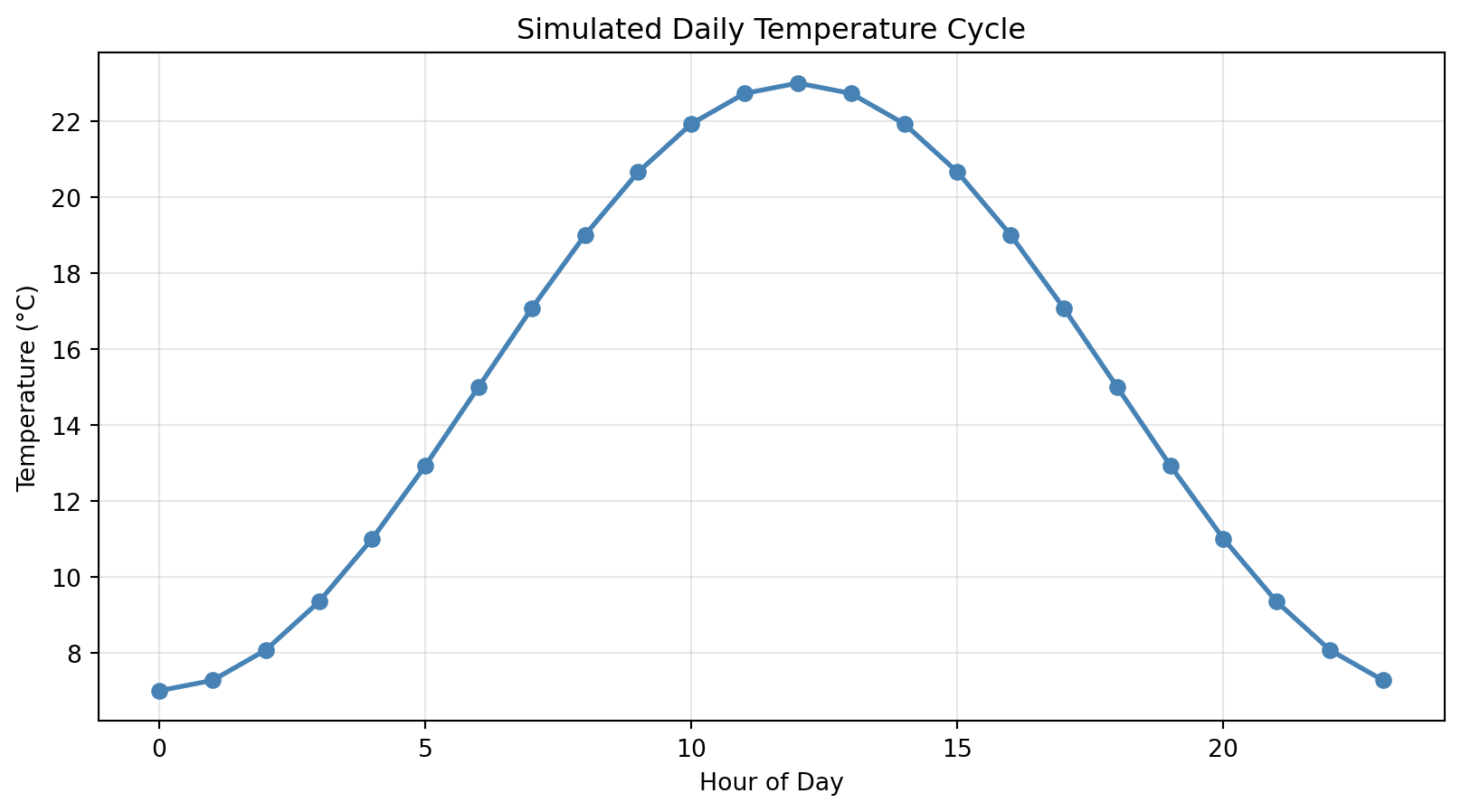
Plotting Recipe

5-step pattern for every plot:

import matplotlib.pyplot as plt

# 1. Prepare x and y data
hours = np.arange(0, 24, 1)
temps = 15 + 8 * np.sin((hours - 6) * np.pi / 12)

# 2. Plot
plt.plot(hours, temps, marker='o', color='steelblue', linewidth=2)

# 3. Label axes
plt.xlabel('Hour of Day')
plt.ylabel('Temperature (°C)')

# 4. Add title
plt.title('Simulated Daily Temperature Cycle')

# 5. Turn on grid and show
plt.grid(True, alpha=0.3)
plt.show()

Takeaway: Follow this pattern every time. Good labels turn quick plots into report-ready figures.

Common Error: Mismatched Array Lengths

Predict the output:

hours = np.arange(0, 24)       # 24 elements
temps = np.array([15, 18, 22]) # 3 elements
plt.plot(hours, temps)
ValueError: x and y must have same first dimension, but have shapes (24,) and (3,)

Why? plt.plot(x, y) expects x and y to have the same length!

Debugging strategy:

print(f"hours.shape: {hours.shape}")
print(f"temps.shape: {temps.shape}")
# They must match!

The fix: Make sure your x and y arrays have the same number of elements

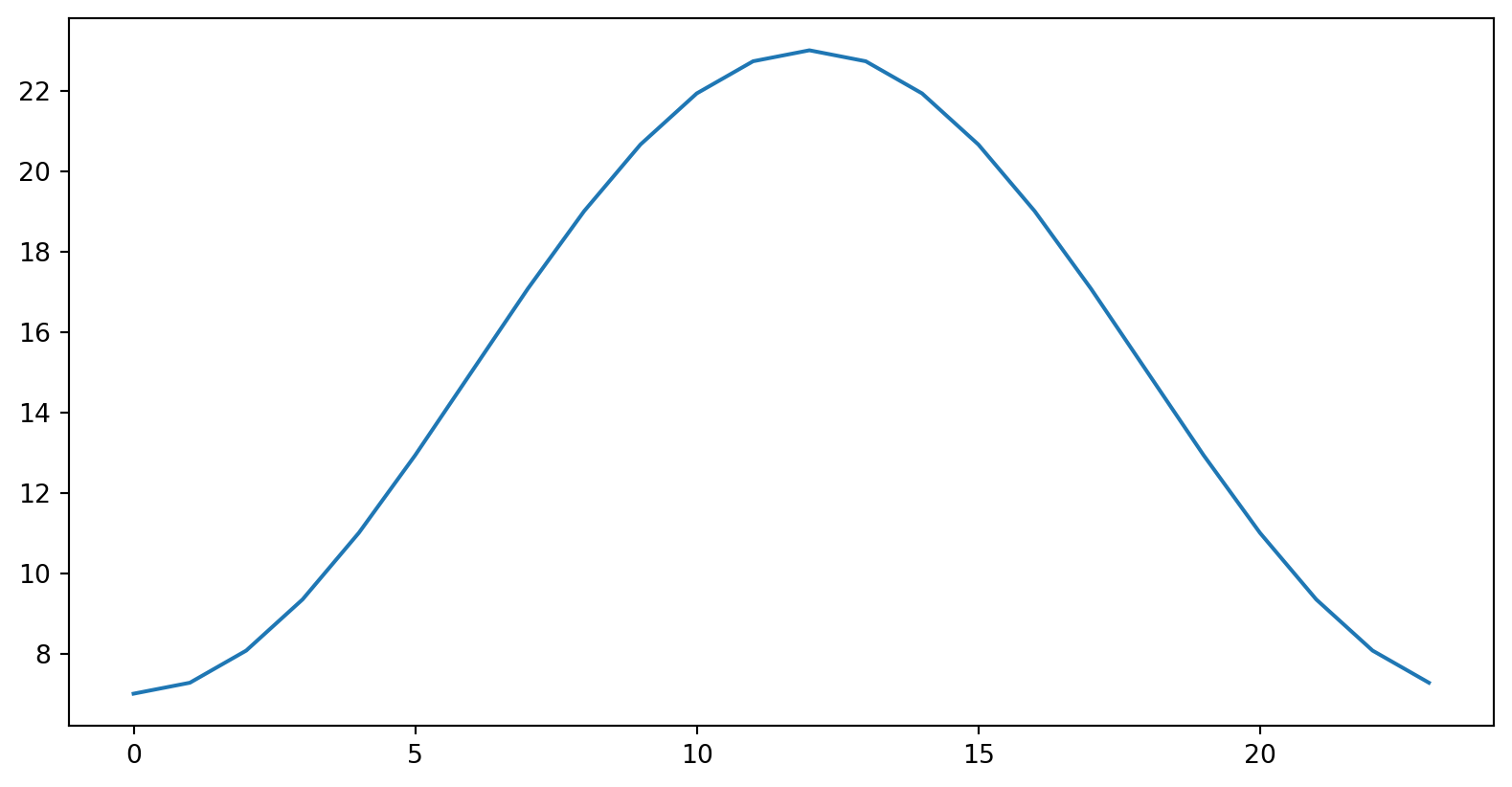
Bad Plot Example

What’s wrong with this plot?

hours = np.arange(0, 24)
temps = 15 + 8 * np.sin((hours - 6) * np.pi / 12)
plt.plot(hours, temps)
plt.show()

Problems:

  • No axis labels — what am I looking at?
  • No title — what does this represent?
  • No units — is temperature in °C or °F?
  • No grid — hard to read values

Never submit a plot like this!

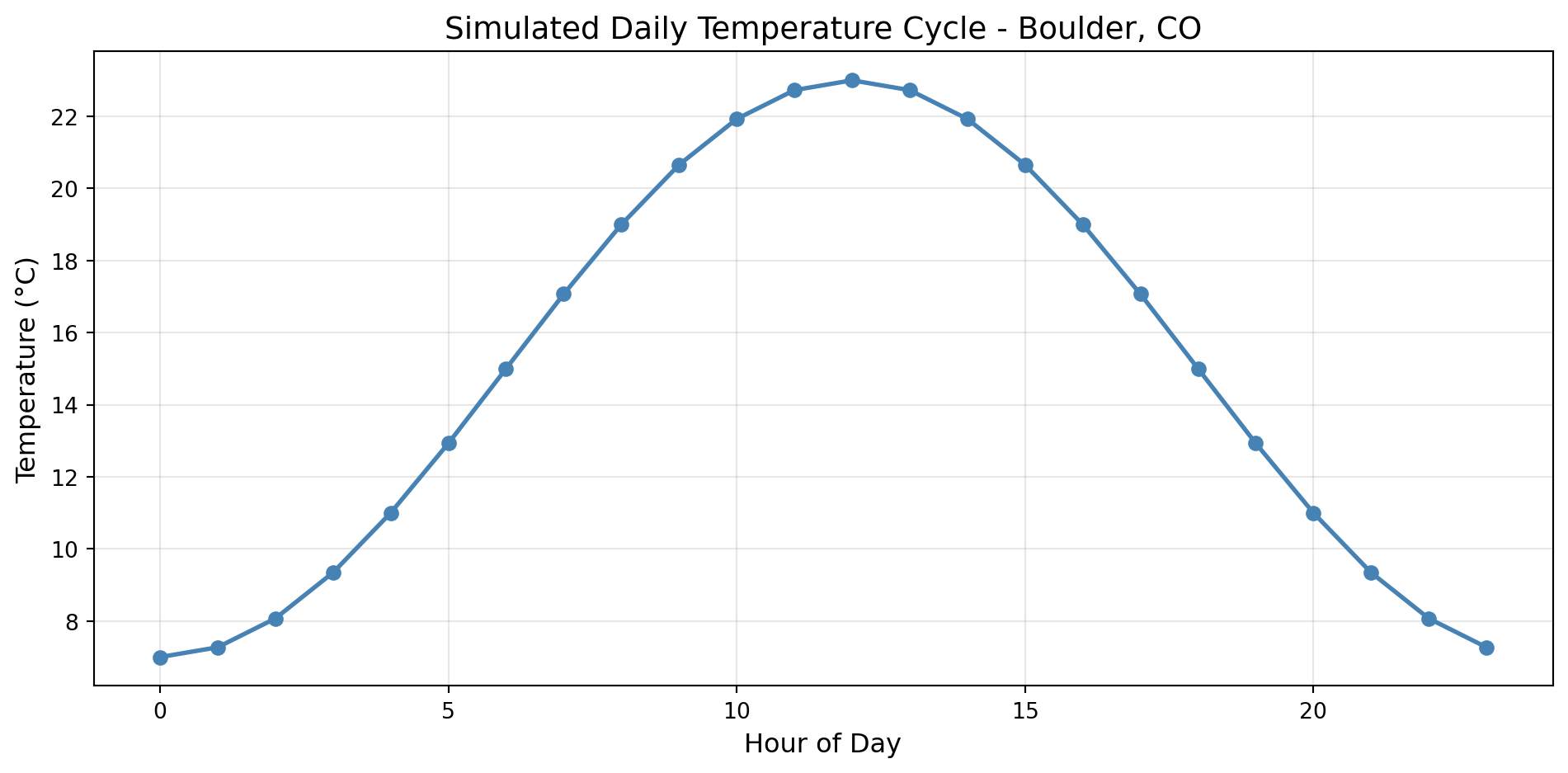
Good Plot Example

Same data, better communication:

hours = np.arange(0, 24)
temps = 15 + 8 * np.sin((hours - 6) * np.pi / 12)

plt.plot(hours, temps, marker='o', color='steelblue', linewidth=2)
plt.xlabel('Hour of Day', fontsize=12)
plt.ylabel('Temperature (°C)', fontsize=12)
plt.title('Simulated Daily Temperature Cycle - Boulder, CO', fontsize=14)
plt.grid(True, alpha=0.3)
plt.tight_layout()
plt.show()

Improvements:

  • Clear axis labels with units
  • Descriptive title with location
  • Grid for reading values
  • Markers to show data points
  • Professional appearance

Scatter and Bar Plots

Big Idea: Different plot types = different stories

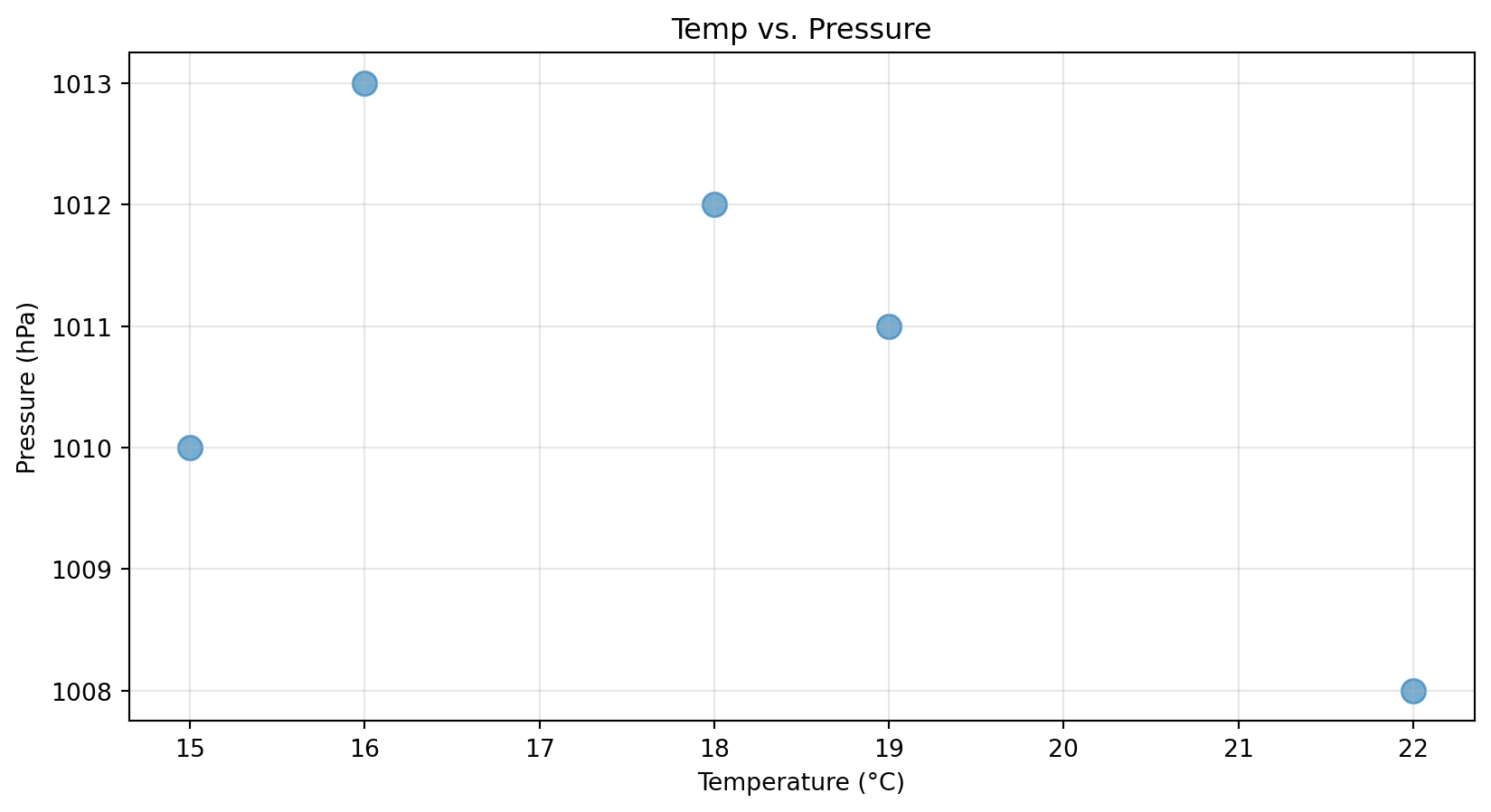
Scatter Plot:

temp = np.array([15, 18, 22, 19, 16])
pressure = np.array([1010, 1012, 1008, 1011, 1013])

plt.scatter(temp, pressure, s=100, alpha=0.6)
plt.xlabel('Temperature (°C)')
plt.ylabel('Pressure (hPa)')
plt.title('Temp vs. Pressure')
plt.grid(True, alpha=0.3)
plt.show()

  • Compare two continuous variables
  • Look for relationships / patterns

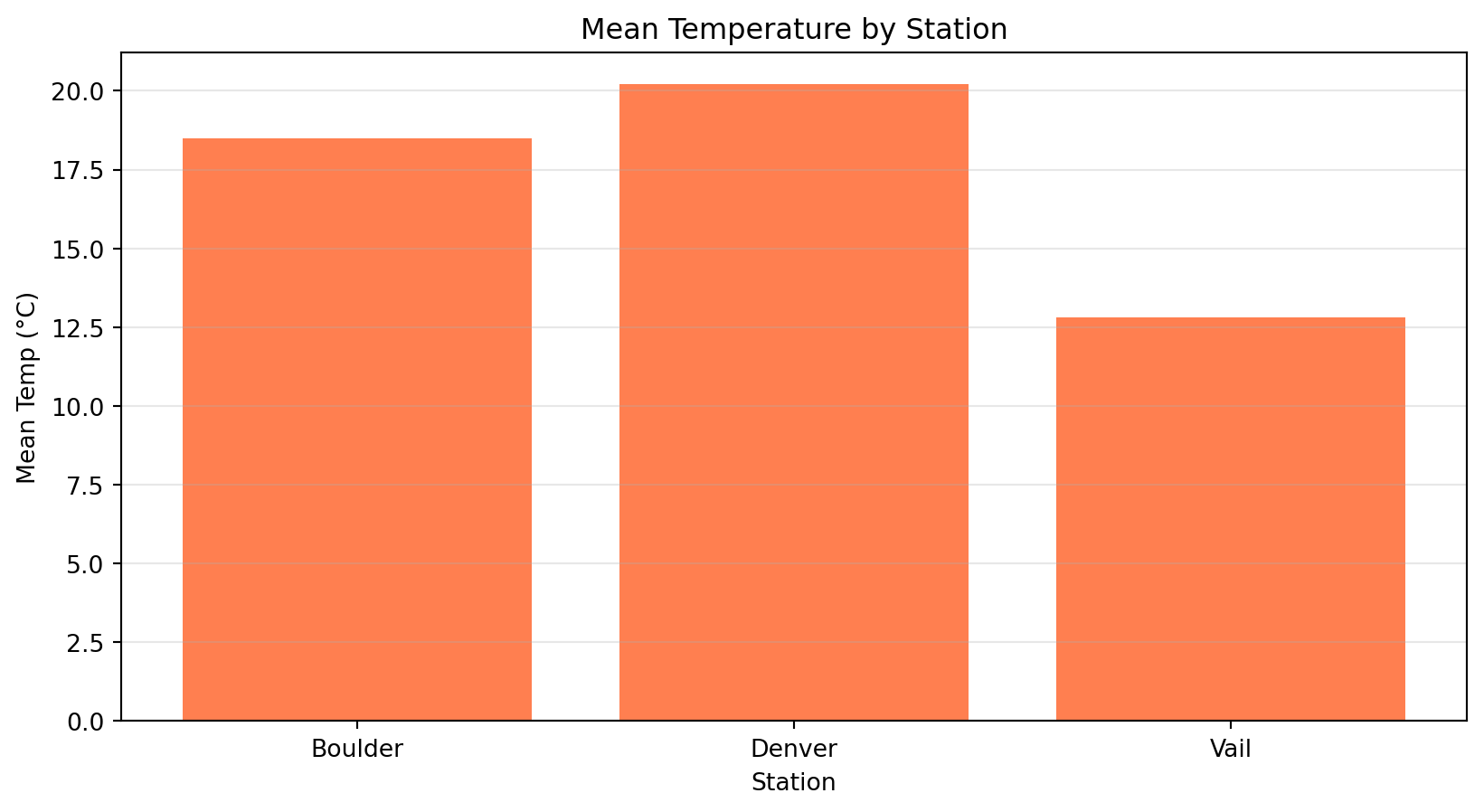
Bar Plot:

stations = ['Boulder', 'Denver', 'Vail']
mean_temps = [18.5, 20.2, 12.8]

plt.bar(stations, mean_temps, color='coral')
plt.xlabel('Station')
plt.ylabel('Mean Temp (°C)')
plt.title('Mean Temperature by Station')
plt.grid(True, alpha=0.3, axis='y')
plt.show()

  • Compare categories or totals
  • Good for “which is bigger?” questions

Match your plot type to the question you’re asking

Check Your Understanding 🤔

Which plot type would you use for:

  1. Comparing average precipitation across 12 months?
  2. Exploring relationship between humidity and temperature?
  3. Showing temperature change over 24 hours?

Answers:

  1. Bar plot — comparing categories (months)
  2. Scatter plot — relationship between two continuous variables
  3. Line plot — showing change over time (continuous)

Key: Think about what question you’re answering!

Multiple Lines

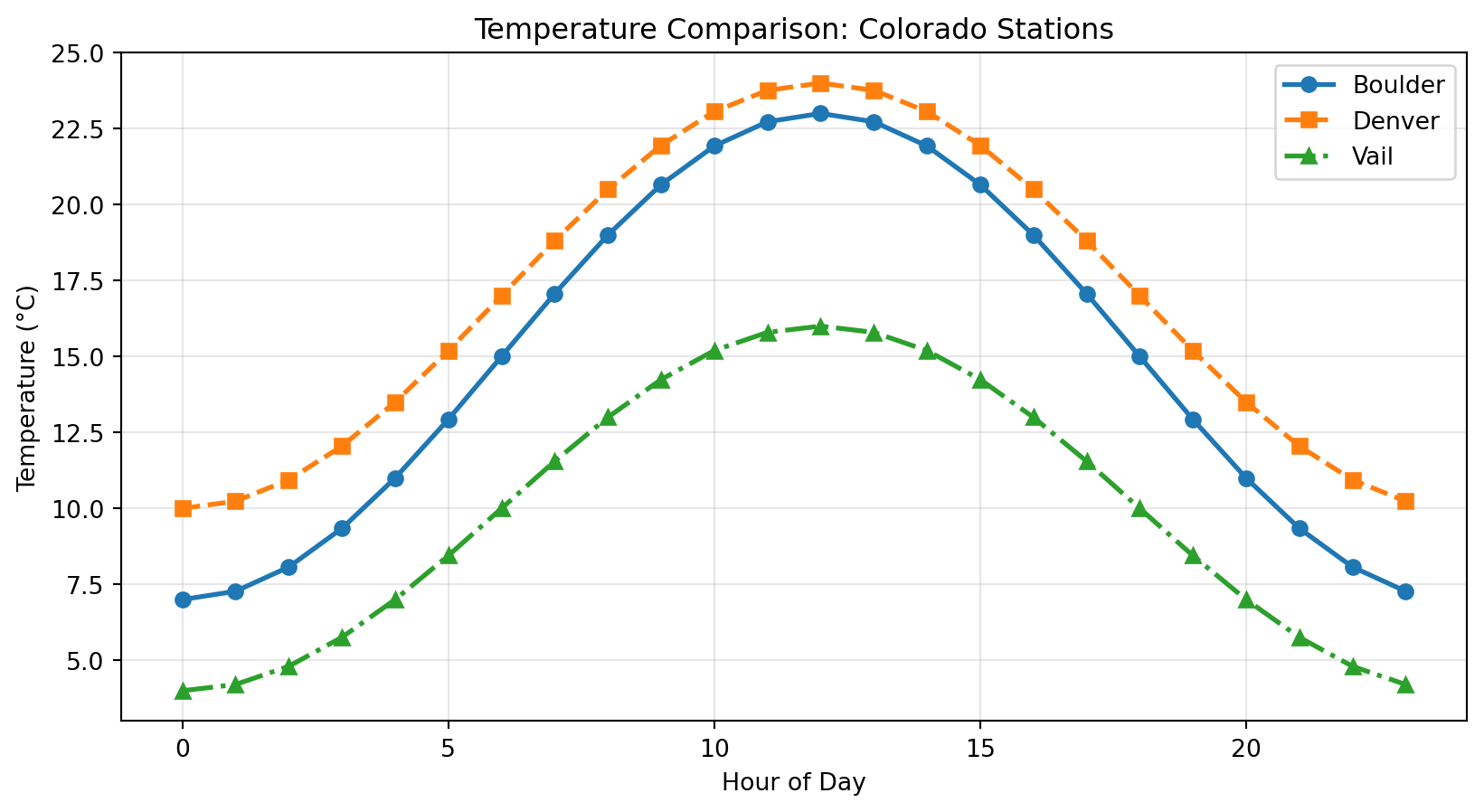
Comparing multiple datasets:

hours = np.arange(0, 24, 1)
boulder = 15 + 8 * np.sin((hours - 6) * np.pi / 12)
denver = 17 + 7 * np.sin((hours - 6) * np.pi / 12)
vail = 10 + 6 * np.sin((hours - 6) * np.pi / 12)

plt.plot(hours, boulder, marker='o', linestyle='-', label='Boulder', linewidth=2)
plt.plot(hours, denver, marker='s', linestyle='--', label='Denver', linewidth=2)
plt.plot(hours, vail, marker='^', linestyle='-.', label='Vail', linewidth=2)

plt.xlabel('Hour of Day')
plt.ylabel('Temperature (°C)')
plt.title('Temperature Comparison: Colorado Stations')
plt.legend(loc='best')
plt.grid(True, alpha=0.3)
plt.show()

Use: Different colors, markers, and linestyles + legend to label each line

Bad pattern: three identical blue lines with no legend — your viewer will be confused!

Common Error: Missing Legend Labels

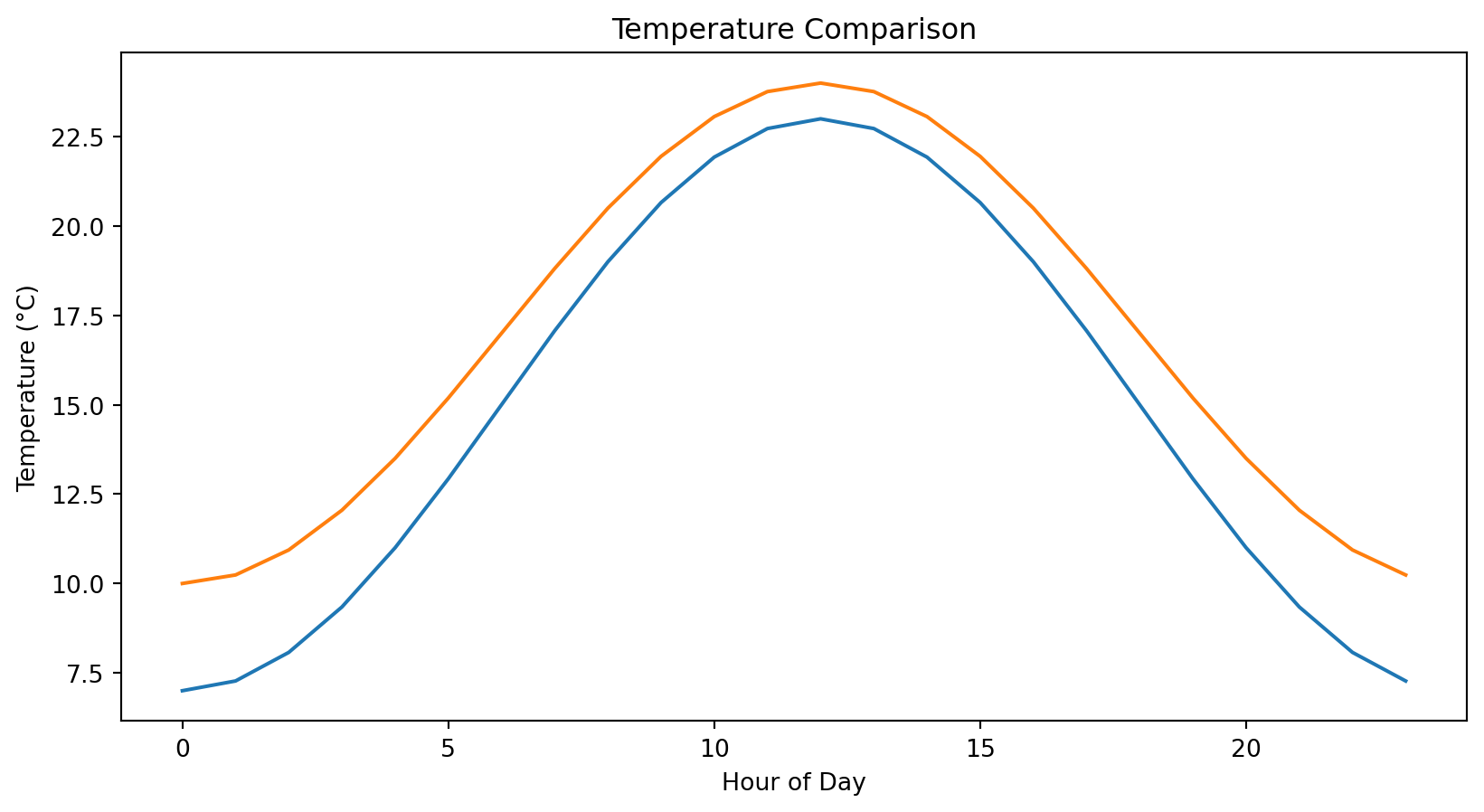
Predict: Can you tell which line is which?

hours = np.arange(0, 24)
boulder = 15 + 8 * np.sin((hours - 6) * np.pi / 12)
denver = 17 + 7 * np.sin((hours - 6) * np.pi / 12)

plt.plot(hours, boulder)  # No label!
plt.plot(hours, denver)   # No label!
plt.xlabel('Hour of Day')
plt.ylabel('Temperature (°C)')
plt.title('Temperature Comparison')
plt.show()

Problem: Which line is Boulder? Which is Denver? Impossible to tell!

The fix: Always use label= and plt.legend()

Subplots & Layouts

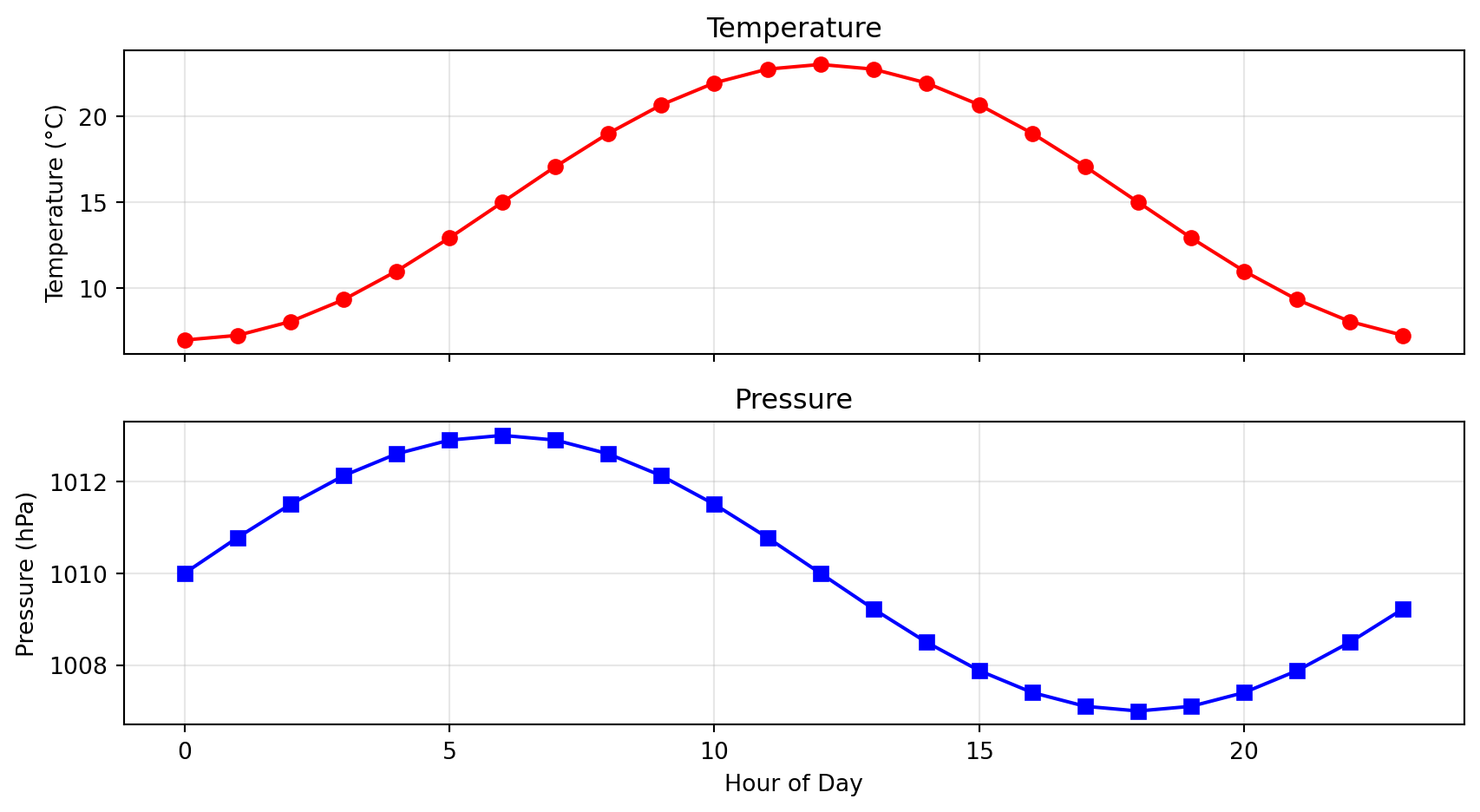
Multiple panels in one figure:

hours = np.arange(0, 24, 1)
temps = 15 + 8 * np.sin((hours - 6) * np.pi / 12)
pressure = 1010 + 3 * np.cos((hours - 6) * np.pi / 12)

fig, (ax_temp, ax_press) = plt.subplots(2, 1, figsize=(9, 5), sharex=True)

ax_temp.plot(hours, temps, color='red', marker='o')
ax_temp.set_ylabel('Temperature (°C)')
ax_temp.set_title('Temperature')
ax_temp.grid(True, alpha=0.3)

ax_press.plot(hours, pressure, color='blue', marker='s')
ax_press.set_xlabel('Hour of Day')
ax_press.set_ylabel('Pressure (hPa)')
ax_press.set_title('Pressure')
ax_press.grid(True, alpha=0.3)

plt.tight_layout()
plt.show()

Key points:

  • plt.subplots(nrows, ncols) creates a grid of axes
  • fig = whole figure, ax_temp, ax_press = individual panels
  • sharex=True keeps same x-axis for both
  • Use ax.plot() instead of plt.plot() for subplots

Try It Yourself 💻

Challenge: Create a 2×2 subplot showing:

  1. Top-left: Line plot of temperature over 24 hours
  2. Top-right: Scatter of temp vs pressure
  3. Bottom-left: Bar plot of mean temps for 3 stations
  4. Bottom-right: Histogram of all temperature values

Hint:

fig, ((ax1, ax2), (ax3, ax4)) = plt.subplots(2, 2, figsize=(10, 8))
ax1.plot(...)
ax2.scatter(...)
ax3.bar(...)
ax4.hist(...)
plt.tight_layout()

Saving Figures

For homework, you’ll need to export plots:

plt.plot(hours, temps, marker='o')
plt.xlabel('Hour of Day')
plt.ylabel('Temperature (°C)')
plt.title('Daily Temperature Cycle')
plt.grid(True, alpha=0.3)

# Save BEFORE show
plt.savefig('daily_cycle.png', dpi=150, bbox_inches='tight')
plt.show()

Common options:

  • dpi=150 or dpi=300 for sharp images
  • bbox_inches="tight" to trim extra whitespace
  • Name files meaningfully: boulder_temp_jan2024.png

Get in the habit: make plot → save → show

Homework expects exported PNGs!

Complete Workflow

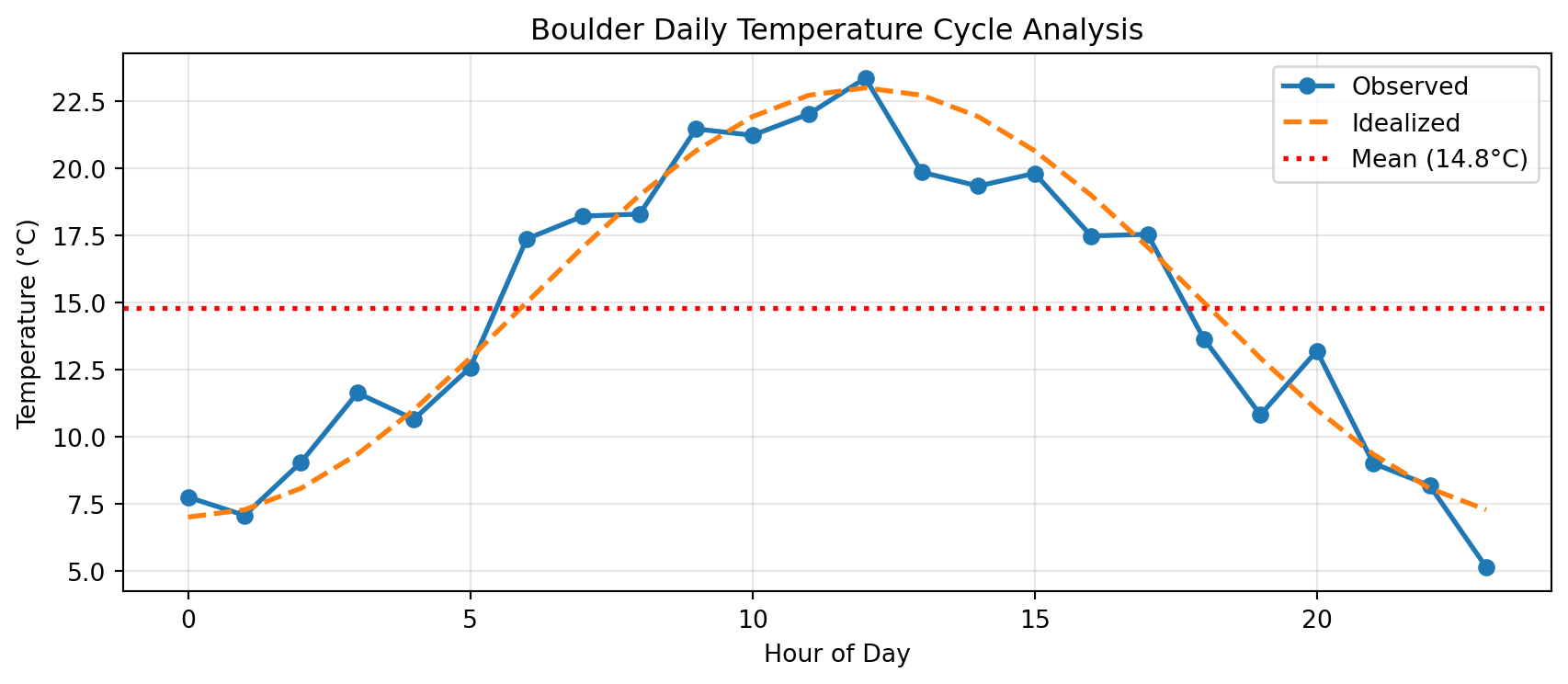
Real Analysis: Simulated Daily Cycle

Complete workflow from data generation to visualization:

# Step 1: Generate synthetic data
np.random.seed(42)
hours = np.arange(0, 24, 1)
daily_cycle = 15 + 8 * np.sin((hours - 6) * np.pi / 12)
noise = np.random.normal(0, 1.5, len(hours))
observed = daily_cycle + noise

# Step 2: Analysis
mean_temp = observed.mean()
max_temp = observed.max()
max_hour = hours[observed.argmax()]
min_temp = observed.min()
min_hour = hours[observed.argmin()]
hot_hours = np.sum(observed > 20)
cold_hours = np.sum(observed < 12)

print(f"Mean: {mean_temp:.1f}°C, Max: {max_temp:.1f}°C at hour {max_hour}")
print(f"Min: {min_temp:.1f}°C at hour {min_hour}")
print(f"Hours > 20°C: {hot_hours}, Hours < 12°C: {cold_hours}")

# Step 3: Visualization
plt.figure(figsize=(9, 4))
plt.plot(hours, observed, marker='o', linestyle='-', label='Observed', linewidth=2)
plt.plot(hours, daily_cycle, linestyle='--', label='Idealized', linewidth=2)
plt.axhline(mean_temp, color='red', linestyle=':', linewidth=2, label=f'Mean ({mean_temp:.1f}°C)')
plt.xlabel('Hour of Day')
plt.ylabel('Temperature (°C)')
plt.title('Boulder Daily Temperature Cycle Analysis')
plt.legend(loc='best')
plt.grid(True, alpha=0.3)
plt.tight_layout()
plt.show()
Mean: 14.8°C, Max: 23.4°C at hour 12
Min: 5.1°C at hour 23
Hours > 20°C: 4, Hours < 12°C: 9

Final Challenge 💻

Put it all together: You have 5 days of hourly temperature data for Boulder

  1. Load data: temps = 15 + 10*np.sin(...) + noise
  2. Calculate daily means (hint: reshape to (5, 24), use axis=1)
  3. Find warmest and coldest day
  4. Create two subplots:
    • Top: All 5 days as separate lines
    • Bottom: Bar plot of daily means

Take 5 minutes to try this with your neighbor!

Key concepts used:

  • NumPy array creation and reshaping
  • Boolean indexing and argmax
  • Multiple lines with legend
  • Subplot layout
  • Proper labels and titles

Looking Ahead

Key Takeaways

NumPy:

  • Think in arrays, not loops
  • Always check shape, dtype, ndim when debugging
  • Use boolean masks instead of if statements
  • Broadcasting is powerful but watch for shape errors
  • axis=0 collapses rows, axis=1 collapses columns

Matplotlib:

  • Every plot needs labels, title, and often a grid
  • Match plot type to your question
  • Use legends when comparing multiple datasets
  • Save figures before showing them
  • Good visualizations tell stories

Debugging:

  • Print shapes early and often
  • Use & not and for array conditions
  • Check array lengths before plotting
  • Read error messages carefully — they tell you what’s wrong!

Assignment Checklist

Due Friday at 9pm:

  • Lab 3
  • HW3

HW3 Focus:

  • NumPy array operations and analysis
  • Boolean indexing and masking
  • Creating publication-quality plots
  • Multi-panel figures with subplots
  • Combining arrays, statistics, and visualization

Pro tip: Start early! Shape errors and axis confusion take time to debug.

Resources and Support

Available to you:

Remember: Everyone gets shape errors. Everyone forgets to import. Everyone makes bad plots at first. This is normal! The key is to debug systematically and learn from mistakes.

Questions?

Contact

Prof. Will Chapman

📧 wchapman@colorado.edu

🌐 willychap.github.io

🏢 ATOC Building, CU Boulder

See you next week!